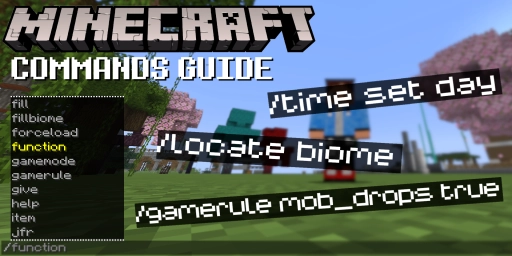
In Minecraft, you can trigger specific actions in the game by typing into the chat window. While the average player might not need them, they can be extremely useful for creative players or server owners. They let you customize your game without mods or other tweaks. By now there are also helpers and tips that make it easier to find your way around. Whether you use them or not, commands are an important aspect of the game and can help you tailor your adventure. And on servers they’re essential for managing players or setting other parameters. You’ll find out here which commands you really need to know.
Minecraft commands in chat Input and usage
You enter commands in Minecraft via the chat. Open it with T, or change the keybind in the settings to a key of your choice. When you press T, a bar opens at the bottom left where you can type a message. You’ll also see all messages that were posted in the current play session, such as screenshots, mod messages, or other inputs.
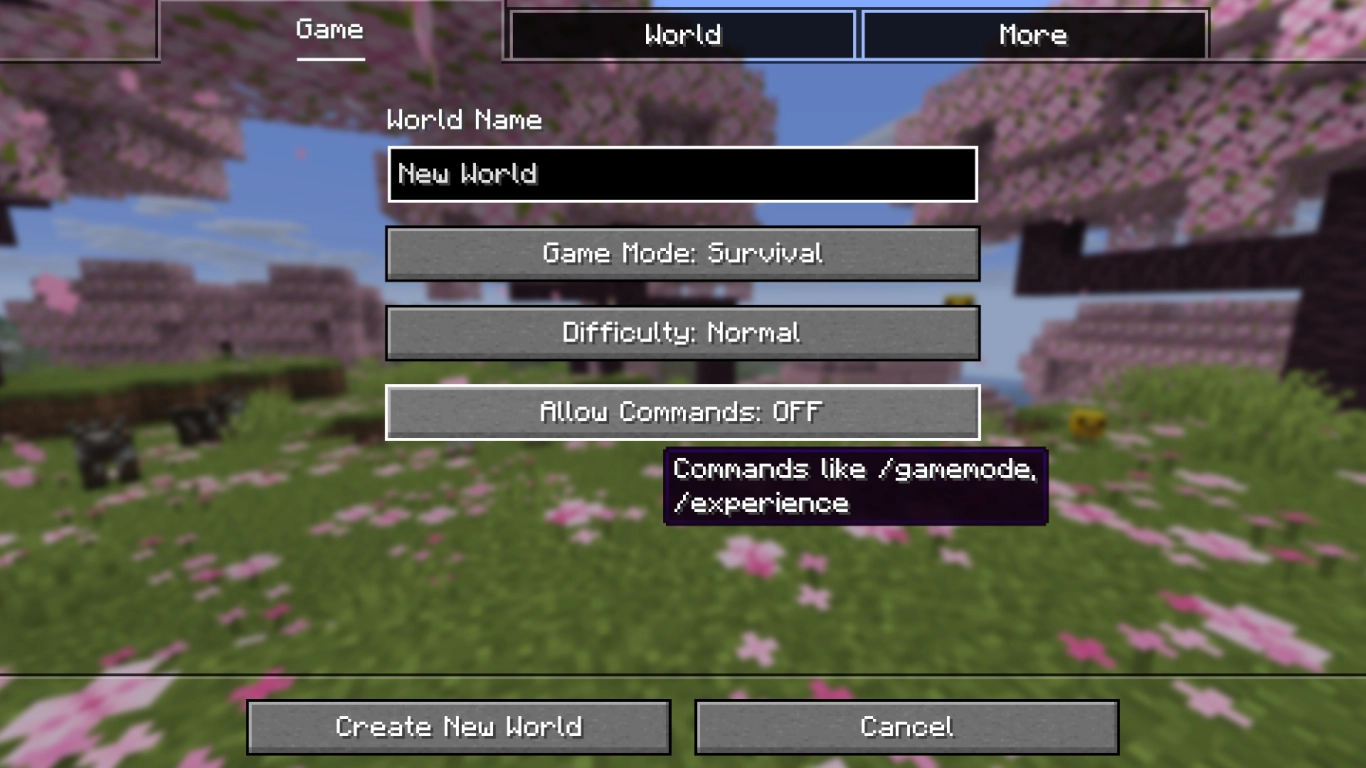
You can only use commands if they are enabled for your world. You can set this when creating a world by allowing commands. A few versions ago this was labeled as cheats, but commands aren’t always cheats. You can also allow commands afterwards by opening your world to LAN. Then you can use commands temporarily as long as the local server is active.
Tips for entering Minecraft commands Autocomplete and parameters
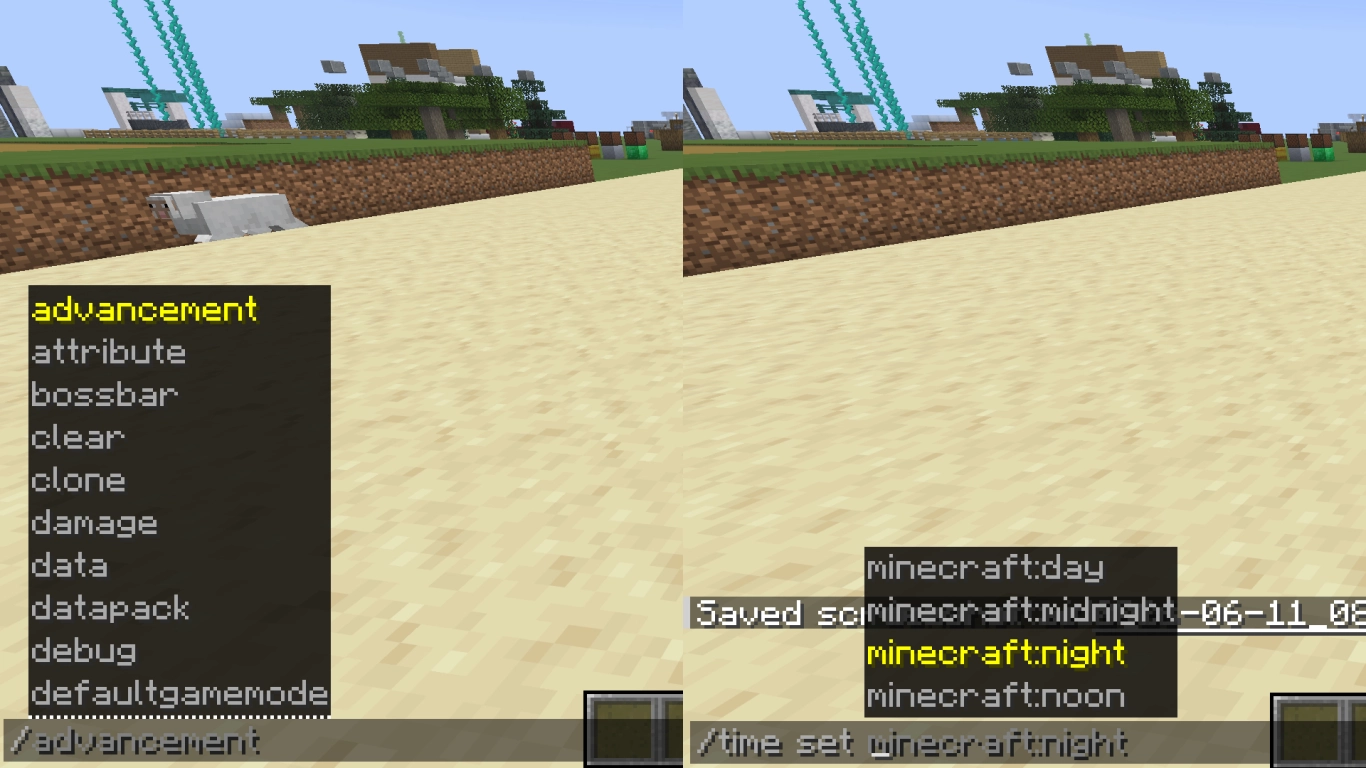
Many helpers have been added to make navigating the chat bar and commands easier, even for beginners. Every command starts with a slash, after which the chat already suggests all possible inputs as a list. You can navigate these with the arrow keys or the mouse. Scroll through all available commands and select them with Tab or a left-click.
Most commands rarely consist of a single word and need additional parameters. Put a space between each parameter. These are also suggested in the selection window so you can pick them comfortably. You can narrow down the choices by typing the beginning of the word and then using Tab to autocomplete. This is especially handy if you want to rent your own affordable Minecraft server from us. You don’t need to memorize every command — you can find and insert them directly in-game. Also use /help to display additional assistance.
Another helpful feature is that commands are saved, even across sessions. Open the chat with T and use the arrow keys without typing anything first to bring up your previous inputs. You can also recall entries from last time — they are saved up to a certain number. So if you use the same command repeatedly, you can find it more easily.
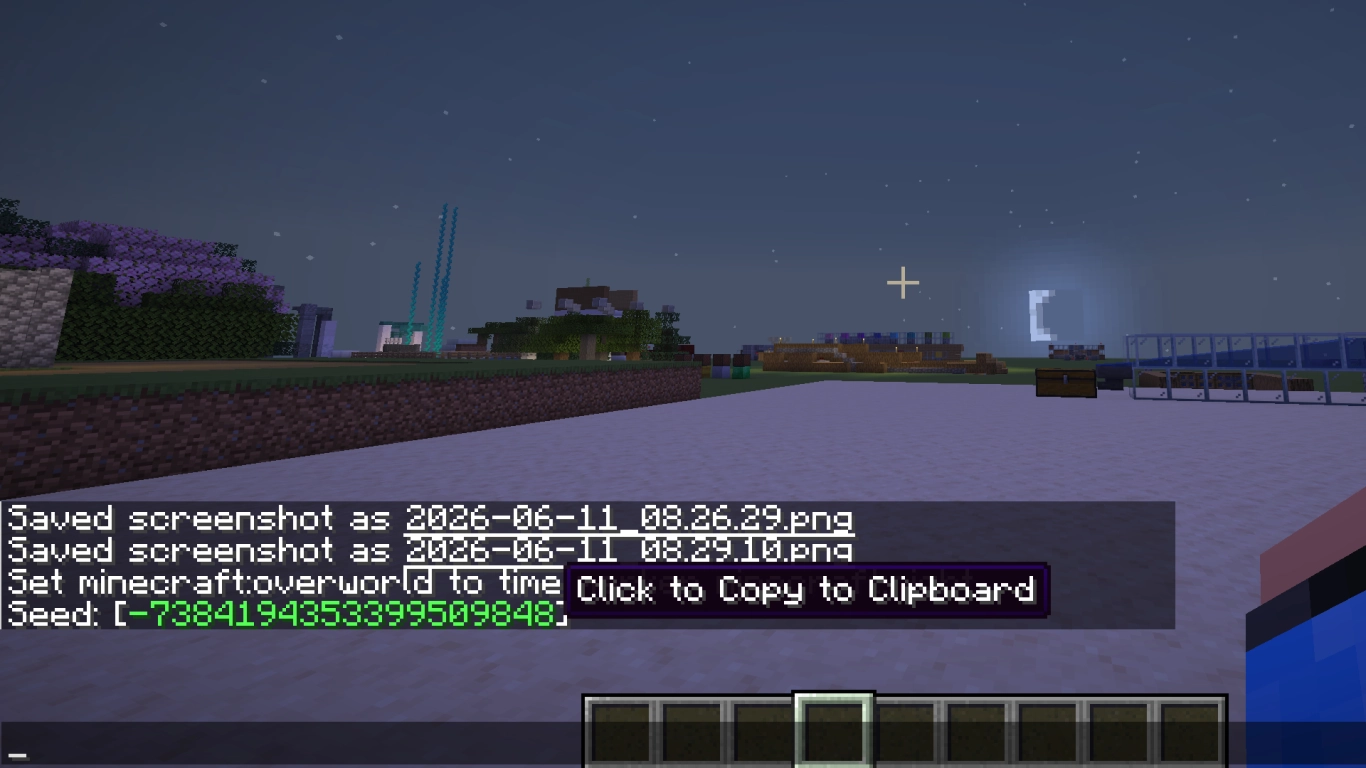
Lastly, you should know that you can click color-coded chat messages. Depending on the command, this serves different purposes. Some info, like your seed, is copied to your clipboard. With others, like coordinates, you can automatically teleport by clicking.
Key Minecraft commands List of the best commands
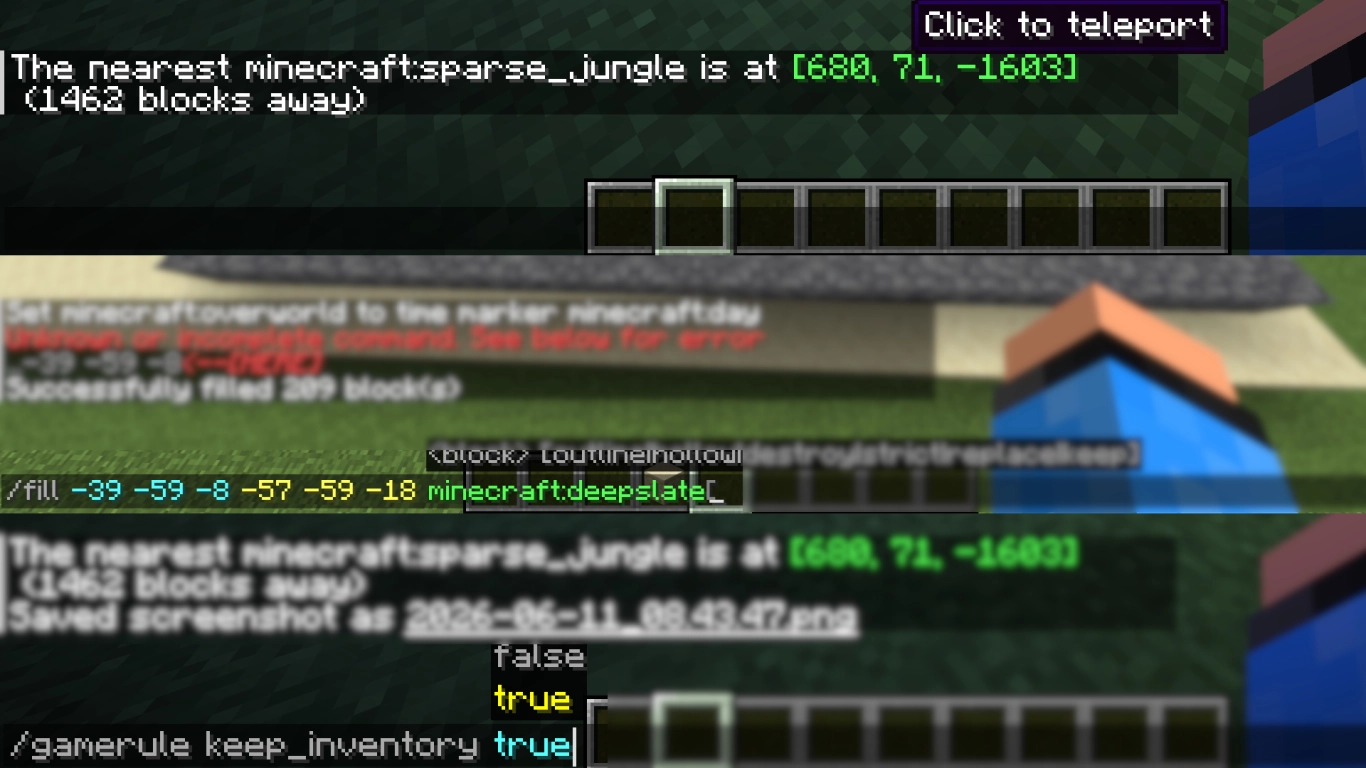
There are a few commands you should know and be able to use to control specific aspects of Minecraft. Whether you see it as cheating or not depends on your own view. In Survival we generally advise against it, but in Creative mode many of these examples are super practical. In the end, play in the way that’s fun for you.
- /seed: Shows you the seed of your world, which you can copy from the chat.
- /gamerule: Applies gameplay modifications that affect how the game behaves. Often toggled with true or false, e.g.
doDaylightCycle false. - /gamemode: Switch between Creative, Survival, Spectator, or Adventure via chat. Alternatively, use F3 + F4 to cycle through them.
- /give: Give yourself or another player items of your choice, e.g.
minecraft:iron_pickaxe{Unbreakable:1b}. - /weather: Change the weather to clear, rain, or thunder. You can also set the duration.
- /locate: Search for structures or biomes and receive coordinates you can teleport to directly.
- /fill: Fill an area with a block of your choice or replace blocks. You can type coordinates or automatically use your current look target.
- /summon: Summon an entity or mob of your choice, e.g.
minecraft:zombie. - /teleport or /tp: Teleport yourself or others to coordinates or players.
- /clear: Remove all items from an inventory or only specific items.
- /time set: Change the time of day, e.g.
day,night, or a time in ticks. - /kill: Kill yourself, other players, or mobs in your world. Be careful with @e, as it targets all entities.
Minecraft server commands for multiplayer administration
Servers have special commands that you should know, especially as an admin. They let you control who can be on the server or punish players who break the rules.
- /ban: Ban a player from the server.
- /pardon: Unban players from the blocklist.
- /list: Shows a list of all players on the server.
- /op: Grant a specific player operator status so they can run more functions.
- /kick: Kick a player from the server. You can also include a reason.
- /save-all: Immediately saves the server world to the server drive.
- /w: Whisper a private message to a specific player.
Conclusion Use Minecraft commands for customized gameplay
Commands are incredibly helpful if you want to adjust settings in your world or game behavior. With various helpers and suggestions, even beginners can find the right commands. It’s worth trying them out to see what’s possible. Many commands are great for creative projects, but of course you can also use them in Survival if you want. For servers, they’re especially useful to ban or unban players for misconduct or to make other quick changes. Discuss with your friends in advance which commands are okay and which aren’t.