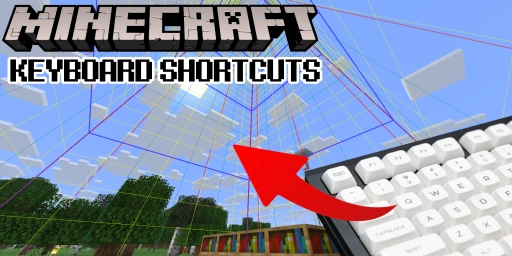
Minecraft is beginner-friendly and explains the basics in its tutorial, but a lot goes unmentioned. The keybind menu reveals more, yet it still isn’t the full story. Many powerful tricks only show up through experimentation or external sources. That’s why we’ve compiled the most important keyboard shortcuts for you. They apply to the Minecraft Java Edition; some may also work in Bedrock. Use them to noticeably speed up your gameplay.
Minecraft function keys: coordinates, screenshots, and debug info
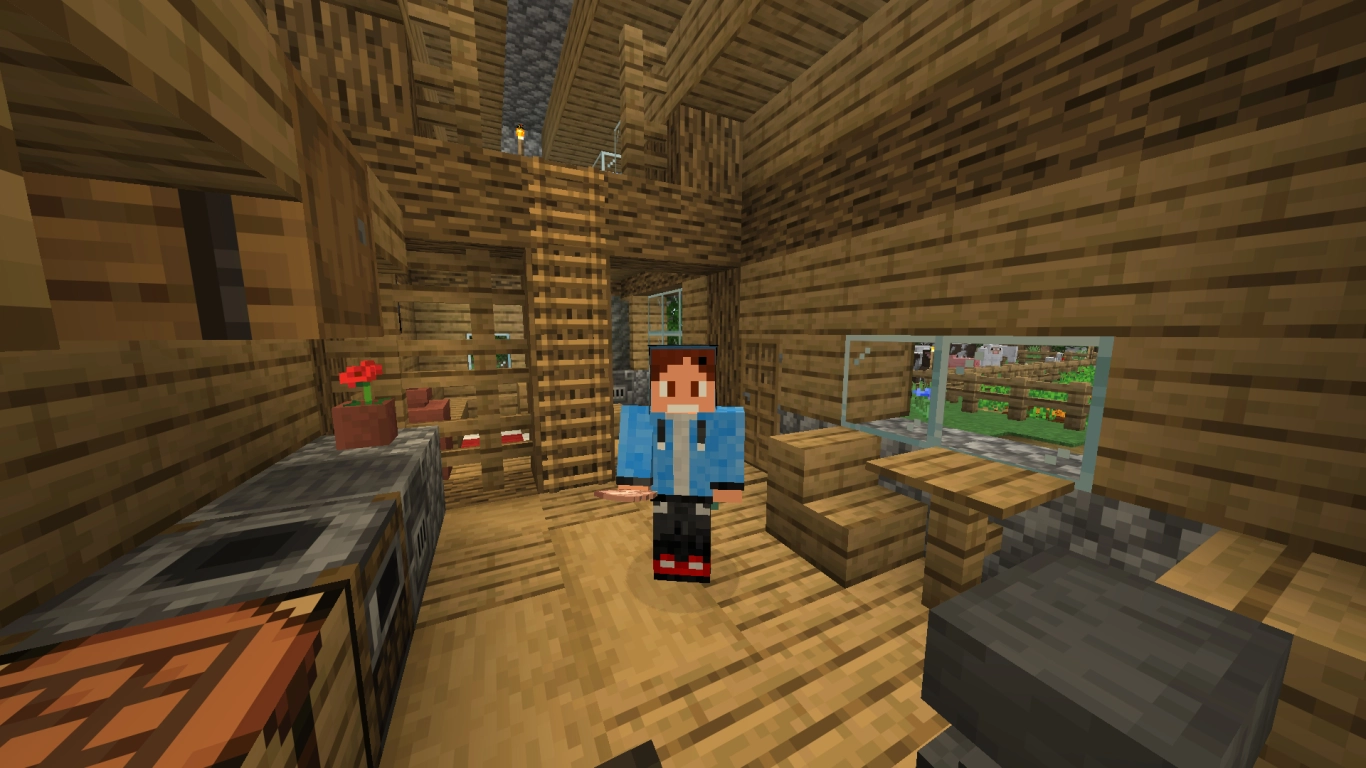
One of Minecraft’s biggest strengths on PC is the function keys. Depending on your keyboard and settings, these may already do things in Windows, but you should also make targeted use of them in Minecraft.
- F1: Hides your HUD. Perfect for screenshots or a clean view.
- F2: Takes a screenshot. Use F1 first to hide the HUD. The image is saved in the screenshots folder in your Minecraft directory. A clickable link appears in chat to open it in your default program.
- F3: Opens the debug screen with extra info about the world and the game, including coordinates, light level, biome, and system performance like FPS, RAM, and graphics card.
- F5: Cycles between third-person rear, third-person front, and first-person.
- F11: Toggles fullscreen on and off.
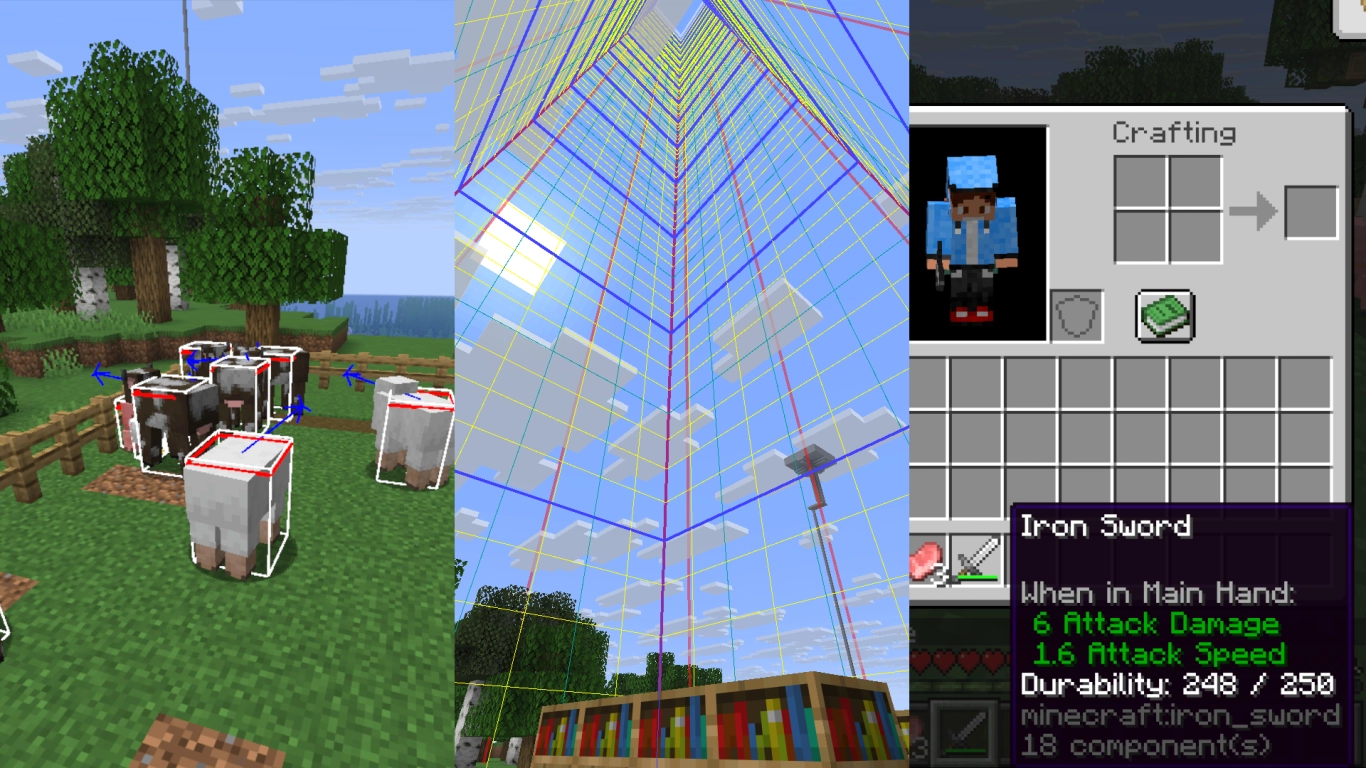
The F3 key stands out in particular because it has additional functions that can be extremely useful. Press F3 + Q for an overview. Here are some of the most helpful combos:
- F3 + F4: Open the Game Mode Switcher; cycle quickly between Survival, Creative, Spectator, and Adventure.
- F3 + H: Toggle Advanced Tooltips. Shows durability as a number and extra item data.
- F3 + B: Show hitboxes and line of sight for all entities. Great for farms and precision work.
- F3 + G: Display chunk borders. A chunk is 16x16 blocks.
- F3 + A: Reload chunks if visuals are stuck or blocks fail to render correctly.
- F3 + T: Reload resource packs. Useful for texture issues.
- F3 + D: Clear the chat.
- F3 + P: Toggle whether the game pauses on lost focus.
- F3 + F: Adjust render distance step by step.
Minecraft middle mouse button: Pick Block and inventory tricks
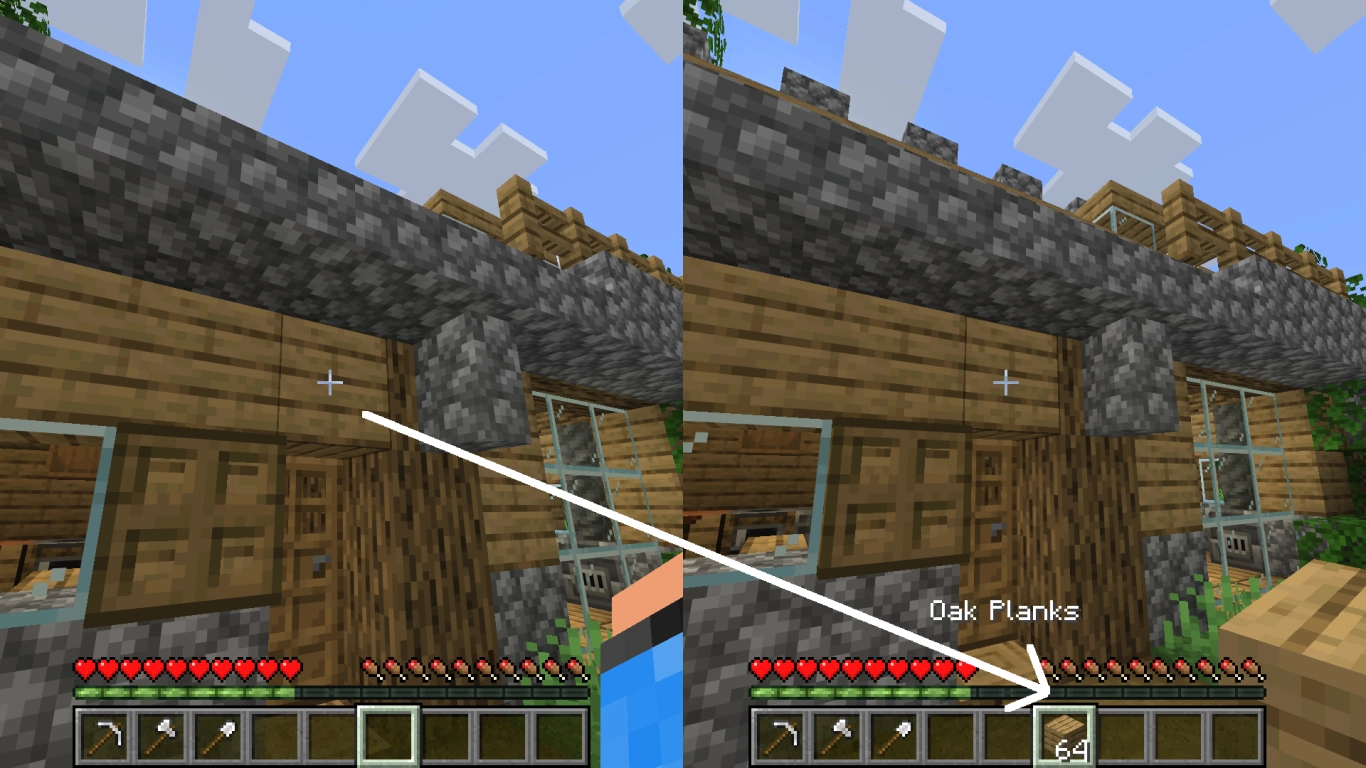
The middle mouse button is a powerful tool. The scroll wheel cycles through your items, but pressing it activates Pick Block.
In Creative mode, the block type you’re looking at is placed into your currently selected hotbar slot. If that block is already on your bar, the selection jumps to that slot. If the bar is full, the currently selected slot is replaced. Especially handy: Ctrl + middle-click on a container like a chest or on signs clones the block including all data (e.g., stored items or the sign text).
Many players don’t realize this also works in Survival mode. You can’t cheat in blocks, of course. It only selects blocks you already have in your inventory and moves the looked-at block to your current hotbar slot. This speeds up building and sorting significantly.
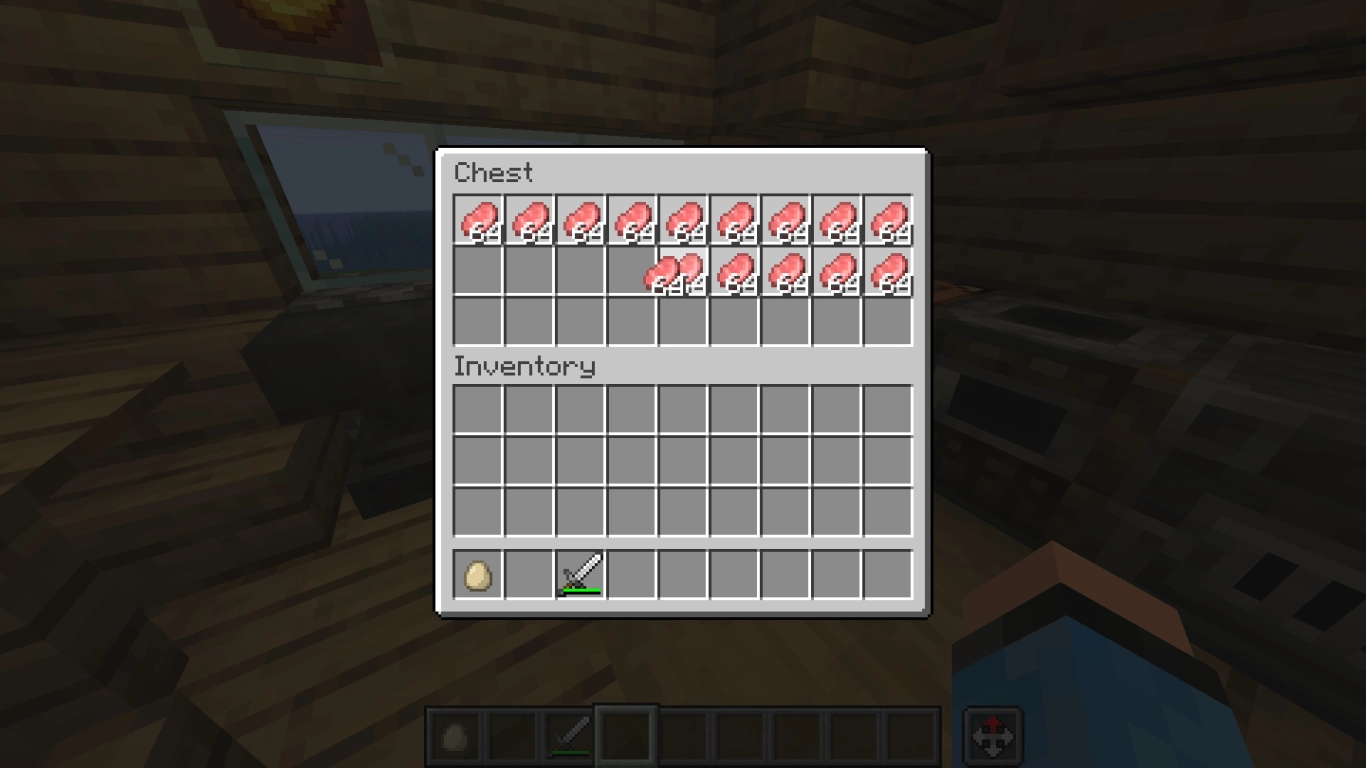
There’s also a Creative-only way to quickly fill chests with items. Pick up an item, then click, hold, and drag with the left mouse button across empty slots in a chest or your inventory to fill them with 64-stacks. This works only in Creative mode.
Minecraft Creative mode: save hotbars and manage items
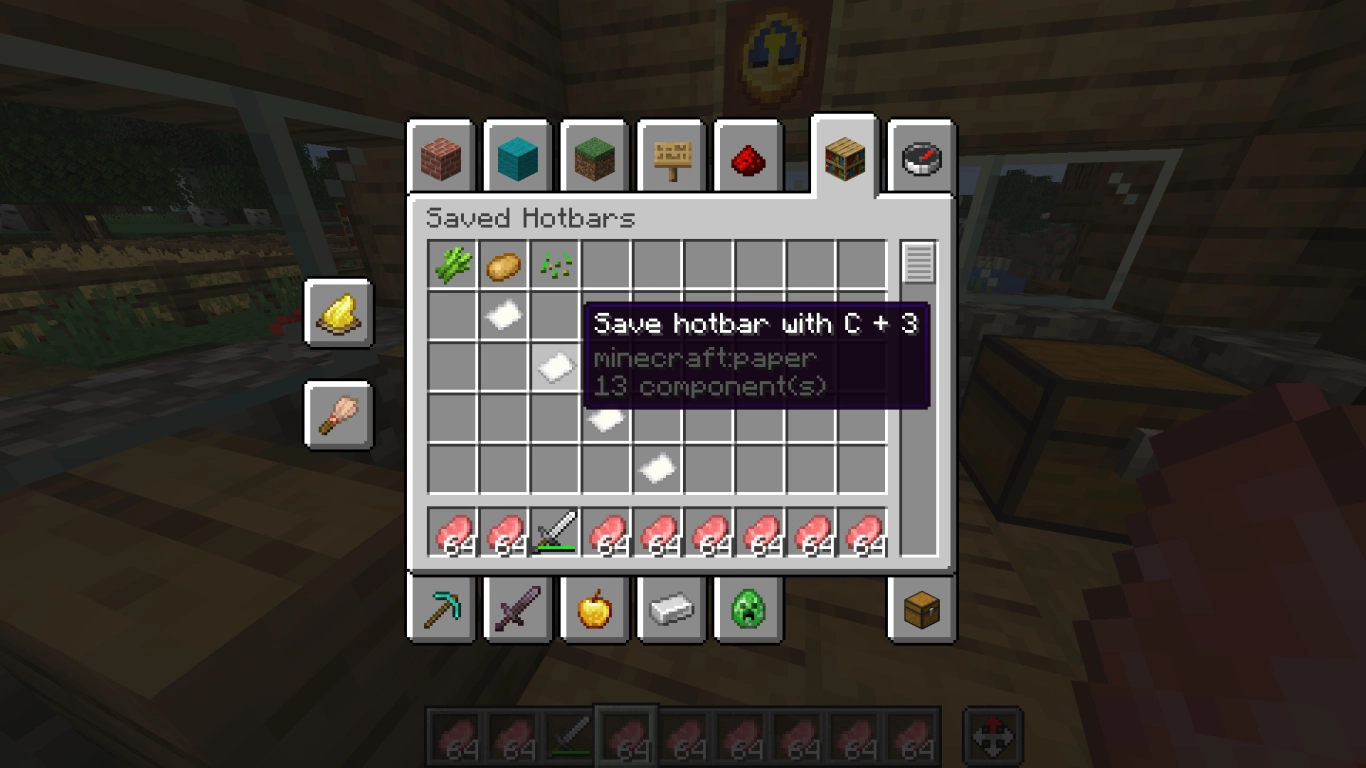
Often forgotten but incredibly useful: saving hotbars in Creative. In the inventory, you’ll find a bookshelf icon at the top right. Use it to define item sets and switch quickly. Find more Creative tips in our post (Minecraft Creative Mode: Tips, Commands, and the Best Mods) .
- C + number (1–9): Saves your current hotbar to one of nine slots.
- X + number (1–9): Loads the corresponding saved hotbar.
Minecraft: sort, stack, and select items faster
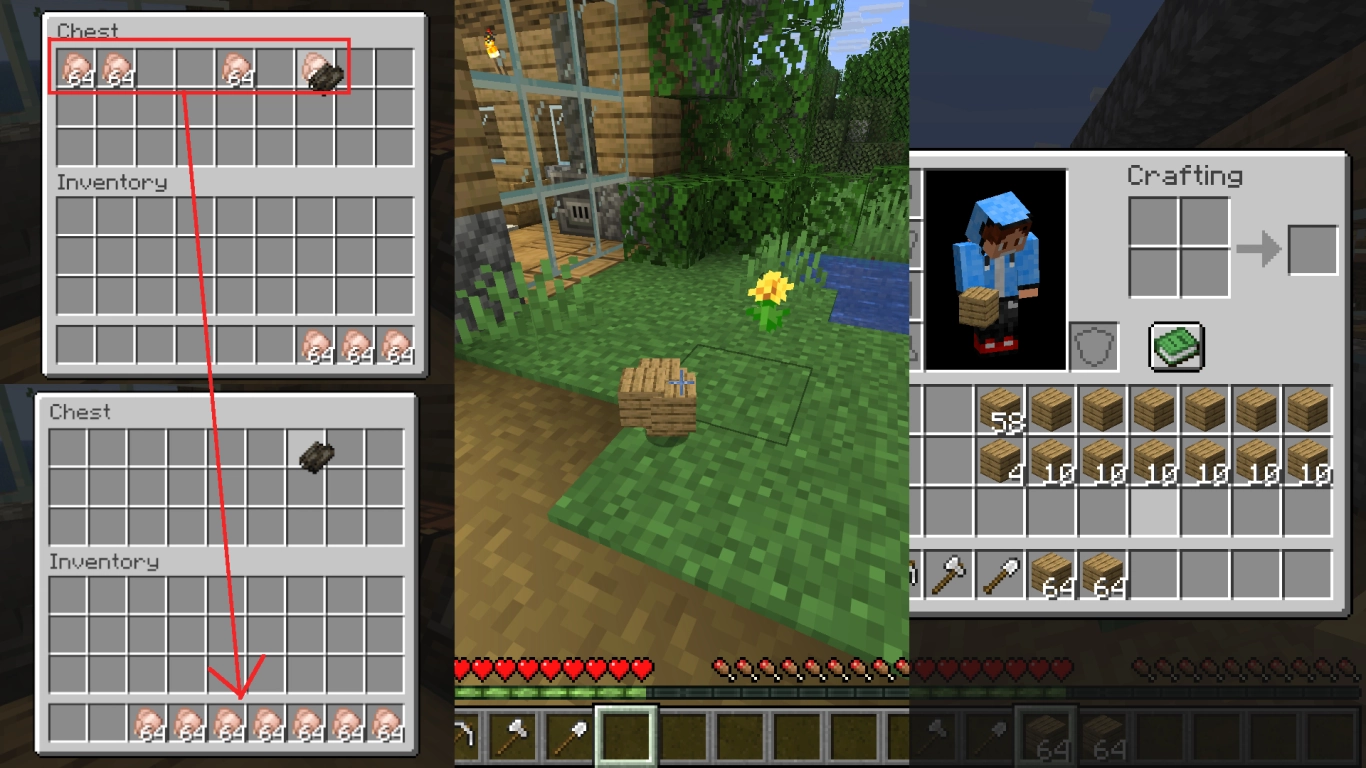
Finally, here are some practical use cases to sort items efficiently. Many are well known, but a few combos help even experienced players.
- F: Puts the currently selected item in your off-hand.
- Ctrl + Q: Drops an entire stack instantly.
- Mouse hover + number (1–9): Sends the item to the matching hotbar slot.
- Double-click an item: Collects all matching items from your inventory and the open container into a single stack on your cursor.
- Shift + click: Moves a stack quickly between a container and your inventory or places items on your hotbar.
- Shift + double-click (while holding an item on the cursor): Moves all items of the same type in one go between the open inventories.
- Hold Shift in the crafting grid: Crafts as many items as possible from the provided materials.
- Right-click a stack: Splits the stack in half.
- Right-drag: Places one item per slot across the selected slots.
- Left-drag: Distributes items evenly across the selected slots.
Conclusion: Minecraft shortcuts for faster gameplay
Shortcuts make many Minecraft tasks easier, yet the game rarely explains them. With the right function keys, Pick Block, saved hotbars, and inventory tricks, you’ll play far more efficiently. Share these tips with friends and boost everyone’s fun.
Ready to jump in? Rent your own Minecraft server and start playing with your team. New players in particular will appreciate these helpful tips.