
Upload Savegame for Hytale
Do you want to continue your already started world on your Hytale-Server?
For this you need an FTP Client as well as this guide.
Important: You must use an FTP Client such as Filezilla or WinSCP.
- Filezilla: https://filezilla-project.org/
Please download the Client here
- WinSCP: https://winscp.net/
- Filezilla: https://filezilla-project.org/
Please download the Client here
- WinSCP: https://winscp.net/
Find Savegame
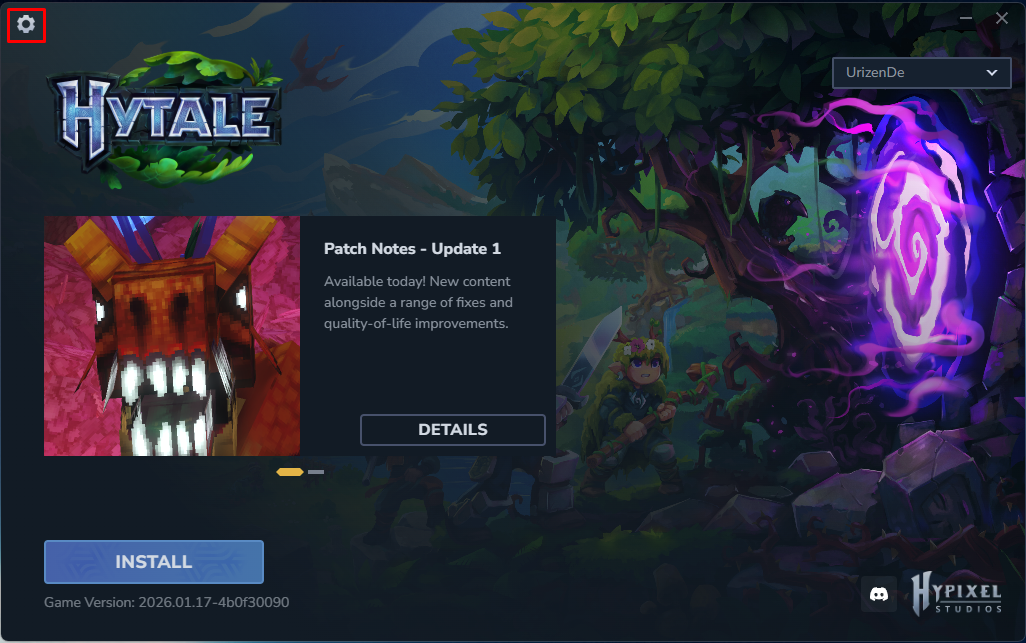
- Start your Hytale Launcher
- Click on the gear icon in the top left
- Click on Open directory
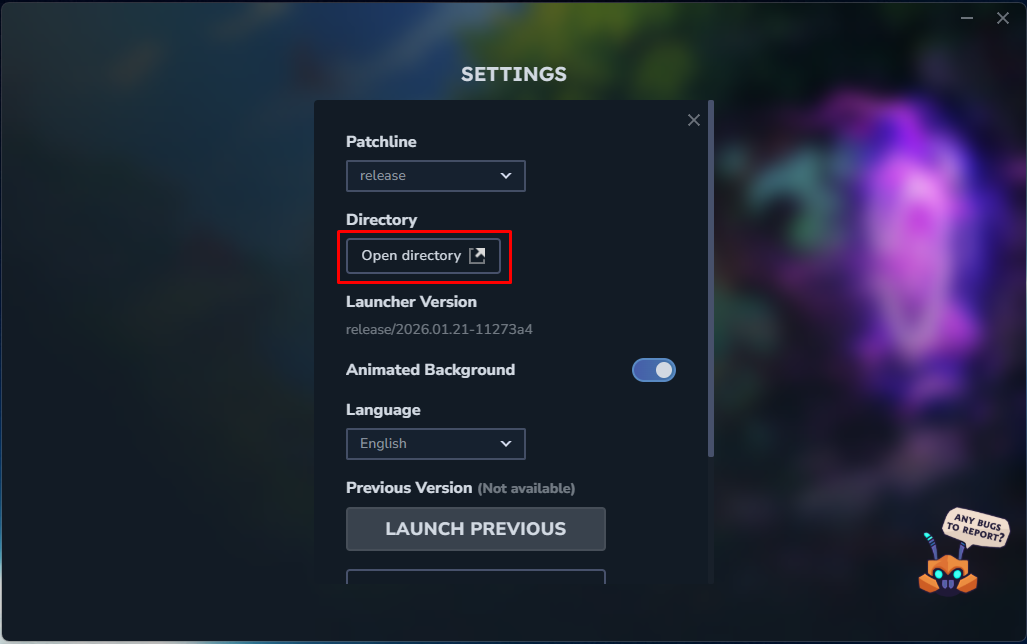
- You can find the folder with your Savegame at:
UserData/Saves/NameOfYourWorld/universe/worlds/
Upload Savegame
- Start your Server.
This starts the Gameserver FTP of your Server. - Stop your Server.
- Upload the folder of your Savegame to the following directory on the Server:
hytale-data/Server/universe/worlds - Do not start the Server yet.
Start Savegame
- Open the settings of your Server.
- Adjust the name of the world:
- In Basic Mode under Server Einstellungen -> Weltname
- In Advanced Mode in
config.json->"World": "Default",
ReplaceDefaultwith the name of your Savegame, e.g.TEST
- Click on Save
- Start your Server
