Minecraft isn’t the most demanding game visually, yet performance issues can still pop up. The Java Edition is old, and with years of code changes, stutters aren’t unusual. If you understand Minecraft’s graphics settings, you can tailor the game to your hardware and squeeze out maximum performance. The options aren’t always clear—especially if you’re not familiar with them—so we put together a guide that walks through every setting, explains what it does, and shows where you can gain a few extra FPS. We also look at what’s coming next for Minecraft.
Optimize Minecraft graphics settings: More FPS and better visuals
You can change all settings directly in-game, and they’ve improved a lot over the years. Returning players may be surprised by how much you can tweak now. Navigate from the “Options” in the bottom left to “Graphics Settings”. There you’ll find sections that affect how your game looks. If you hover over different options, you’ll also see a short description (not for all). We’re referring to the settings in version 26.1; they may change later.
Display settings in Minecraft: Resolution, FPS cap, VSync, and fullscreen
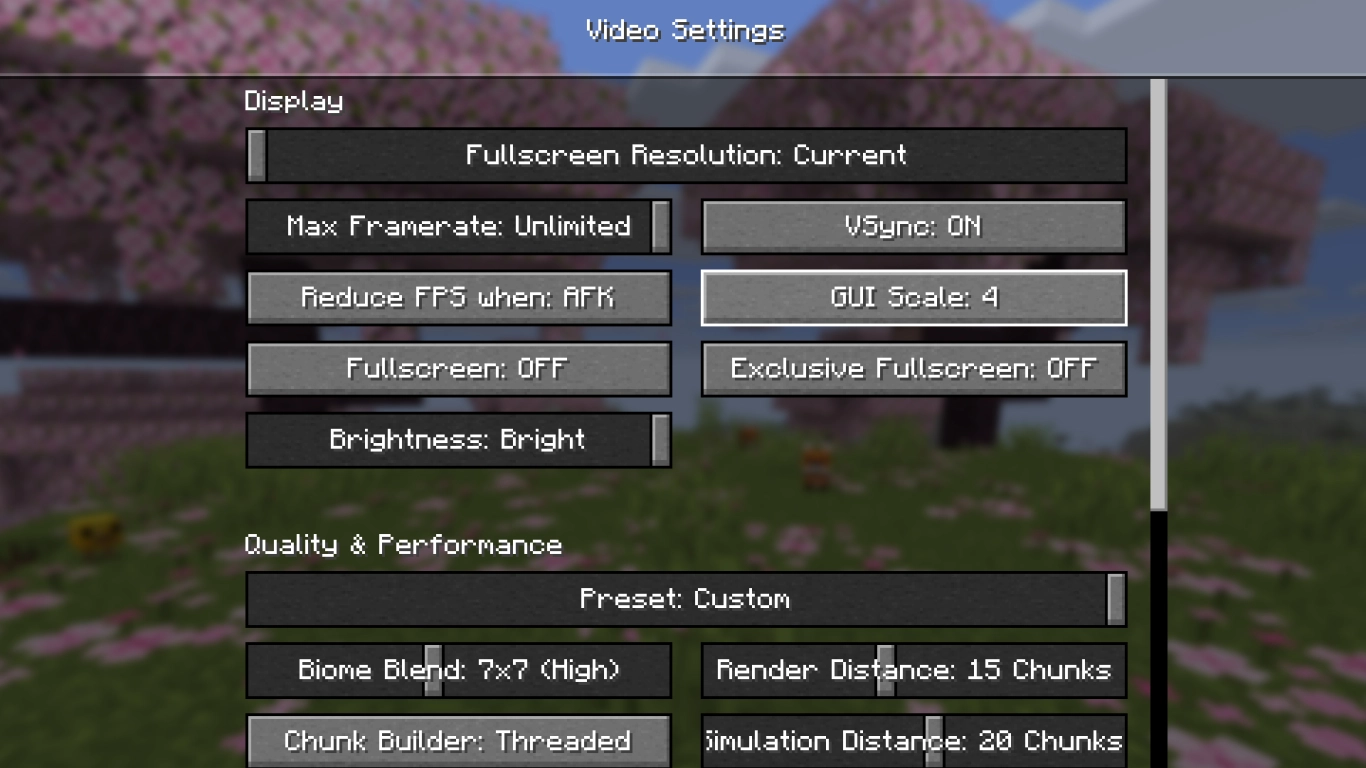
These are your standard graphics settings tied primarily to your display—resolution, different rendering methods, and fullscreen.
Fullscreen resolution: The resolution when fullscreen is enabled (F11). In windowed mode, the game uses your monitor’s resolution or the one set for the Minecraft instance.
Frame rate / FPS: Cap FPS to save power or match your monitor’s maximum refresh rate.
Reduce FPS: Game is limited to 10 FPS. AFK: After one minute without input. Minimized: When the window is minimized.
Fullscreen: Toggle fullscreen; also works via F11 in-game.
Brightness: How bright the game appears; does not affect gameplay or performance. Purely subjective.
VSync: Syncs FPS to your monitor’s refresh rate. Can cause issues, but can also help. Often depends on your PC.
GUI scale: Size of menus and the inventory.
Exclusive fullscreen: Enables exclusive fullscreen mode.
Graphics quality and performance in Minecraft: Render distance, particles, and texture filtering
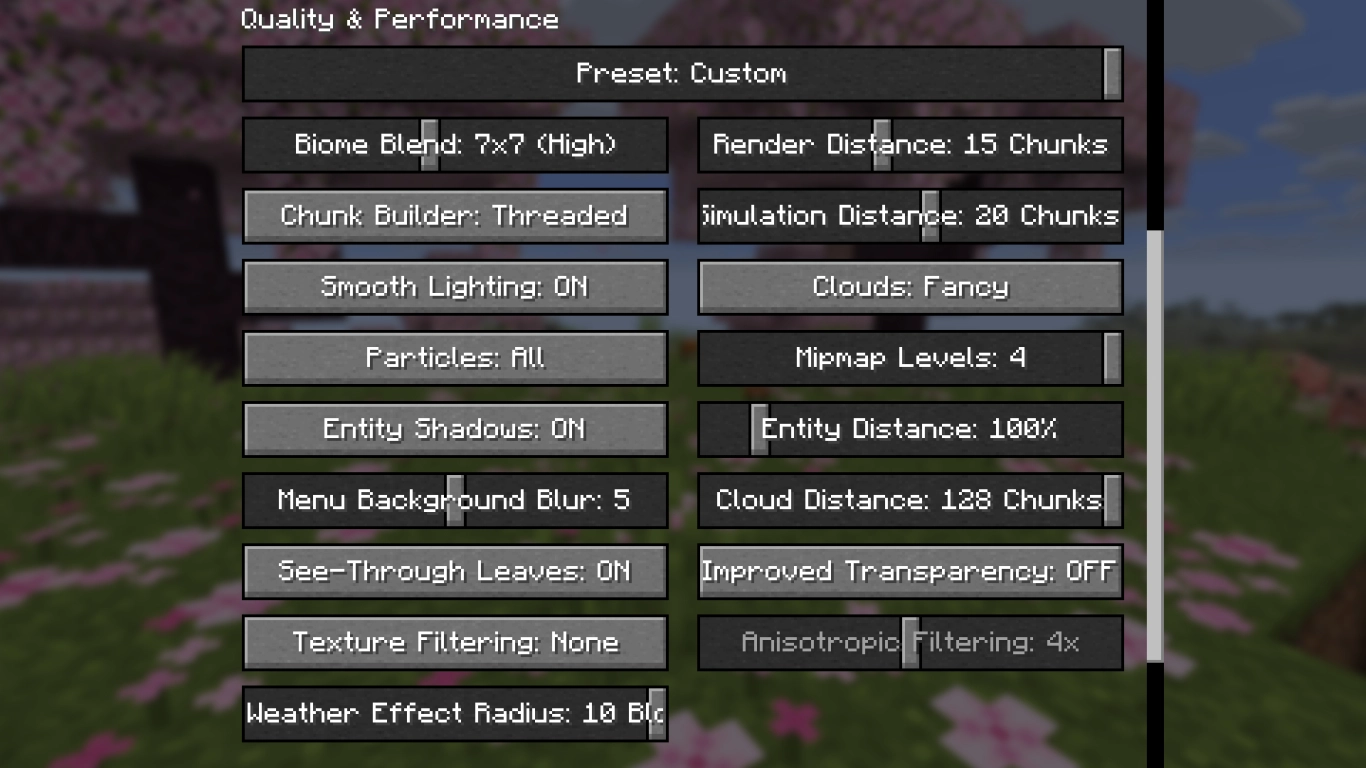
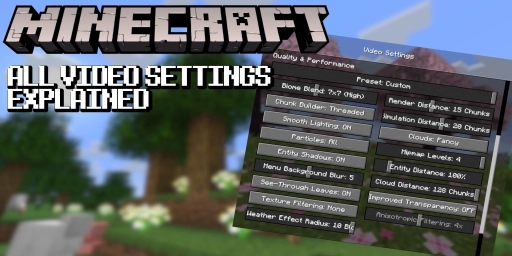
This section controls Minecraft’s core visuals. There’s now a Presets slider that gives you a solid baseline before you fine-tune individual options. Choose between Fast, Fancy, Fabulous, or Custom. The last one is enabled when you change options manually.
You can squeeze out the most performance by turning everything down, but you’ll sacrifice a lot of visual quality, which isn’t always fun. Here’s how to strike a balance without losing too much eye candy.
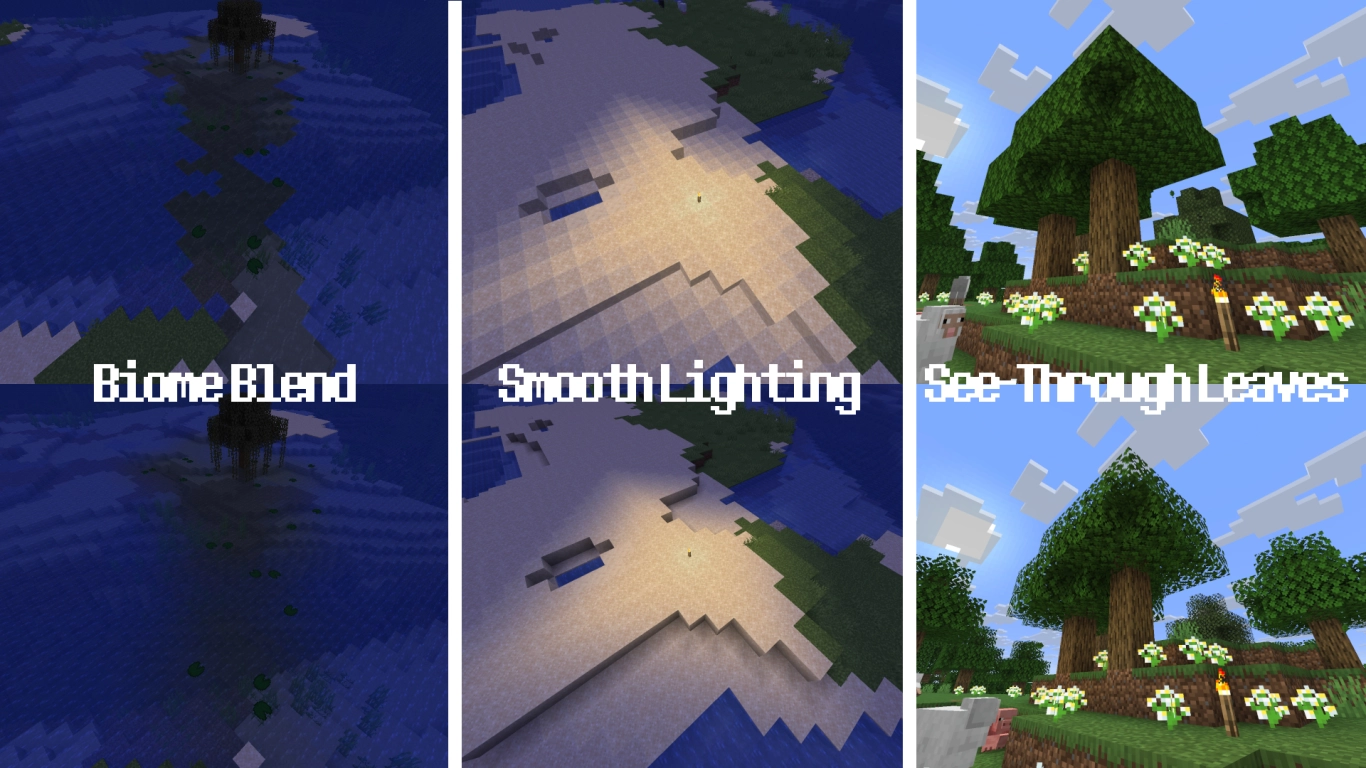
Biome blend: Color transitions between biomes—for example, water, grass, or leaves.
Chunk compilation: How chunks are updated. Semi-blocking is often the best choice; parallel can be faster on some systems.
Smooth lighting: Calculates lighting per block or across adjacent blocks.
Particles: Show all, some, or no particles.
Entity shadows: Toggle shadows under players, mobs, and dropped items.
Menu blur: How much the menu background is blurred. No FPS impact.
Transparent leaves: Can significantly boost FPS, especially in forests like jungles, but doesn’t look particularly nice.
Texture filtering: Choose no filtering, RGSS, or Anisotropic. Controls how textures are rendered, especially at a distance. Results vary by GPU—try each. RGSS works well for most players.
Weather effects radius: How far weather effects are visible, from three up to 10 chunks.
Render distance: One of the most important performance settings. Goes up to 32 chunks, but reduce it if you’re short on FPS. In general, 14 to 18 chunks is a good target and can greatly improve performance.
Simulation distance: Independent of render distance; controls entity and game logic updates. We recommend setting it 6 chunks lower than render distance.
Clouds: Choose none, fast flat-texture clouds, or fancy 3D clouds.
Mipmap levels: Smooths textures at a distance and reduces shimmering; can impact performance.
Entity distance: How far entities are rendered relative to your render distance.
Cloud render distance: How far clouds are drawn in the sky.
Advanced translucency: You should turn this off—it’s heavy on performance. On powerful PCs it can improve image quality.
Anisotropic filtering: Additional controls when texture filtering is set to anisotropic. Recommended only for strong PCs.
Display preferences and HUD in Minecraft: Vignette, attack indicator, autosave
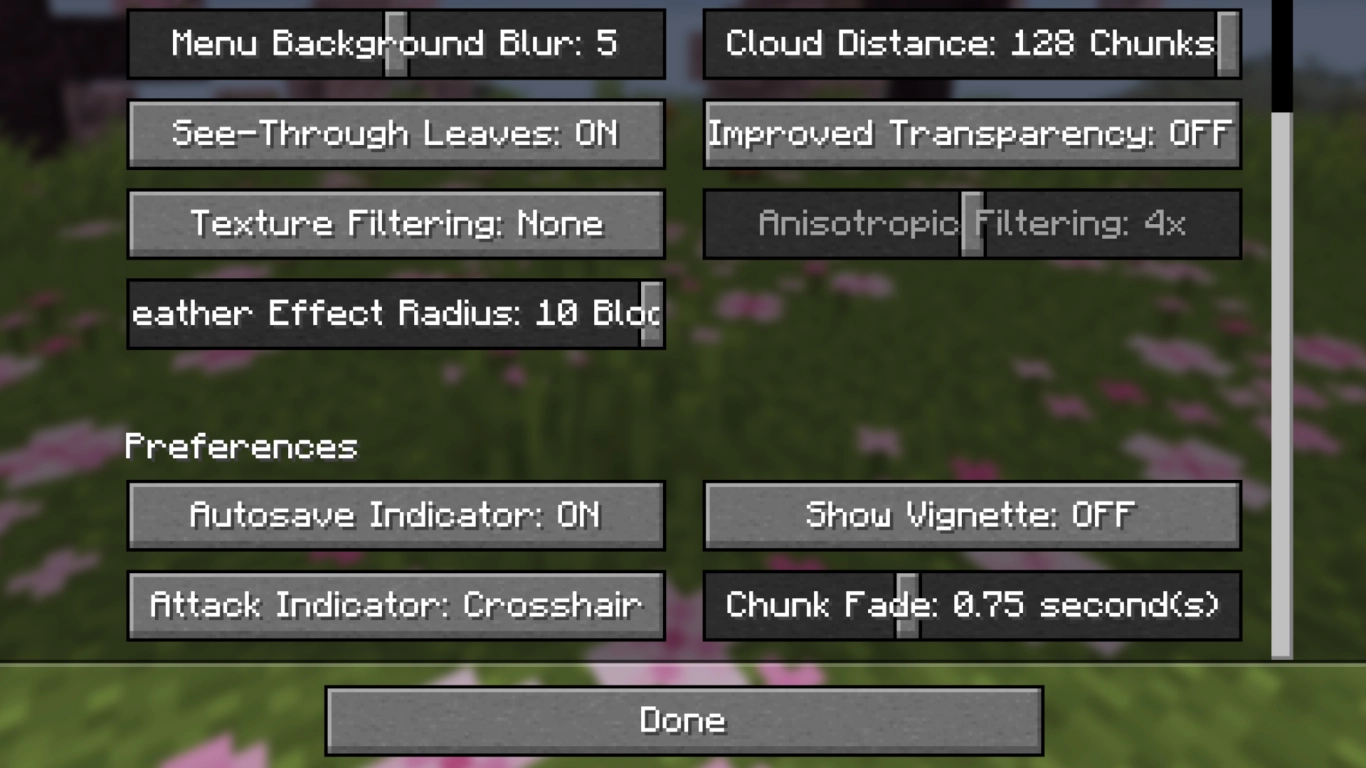
The last four settings don’t directly affect performance or core graphics—they’re mostly visual preferences. Choose what looks best to you.
Autosave indicator: Shows a message when the game autosaves.
Attack indicator: Where your weapon cooldown appears—next to the crosshair, next to the hotbar, or off.
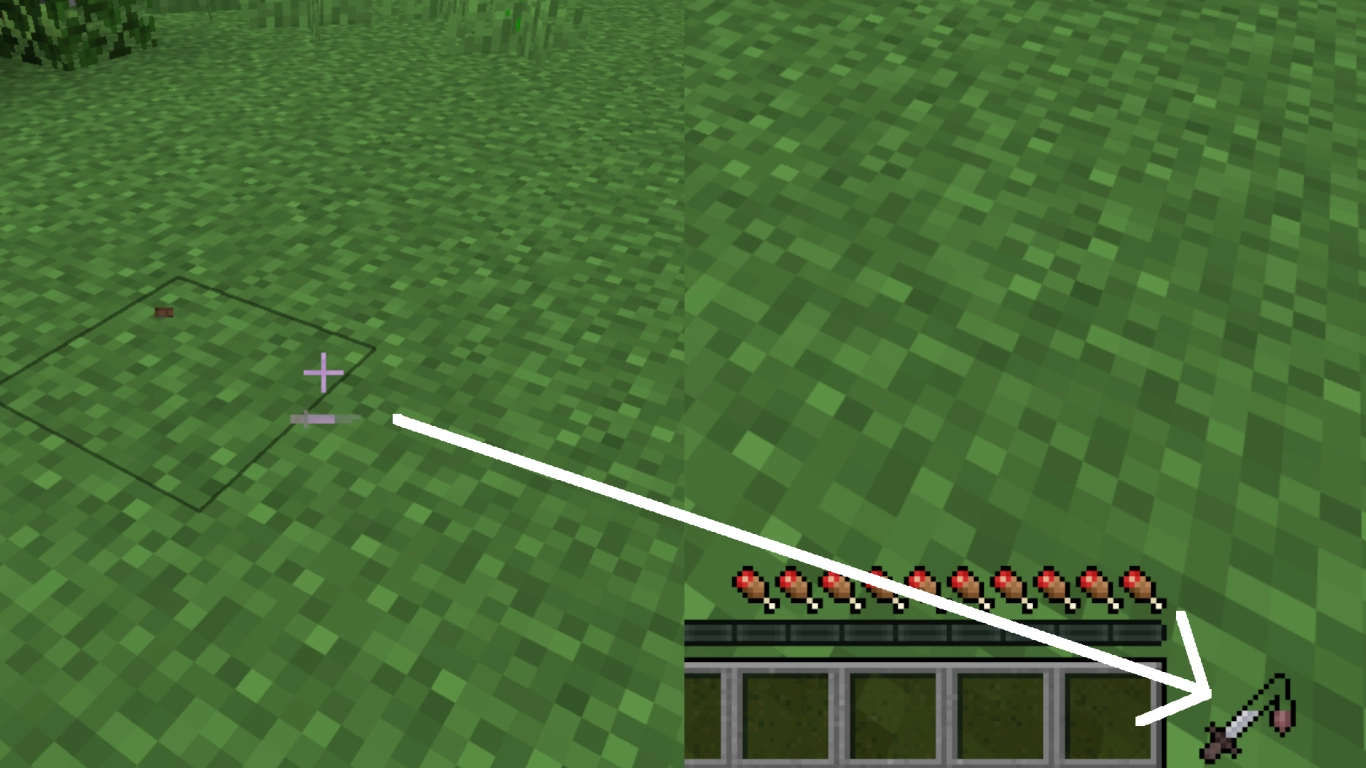
Vignette: Toggle the vignette around the edges of the screen.
Chunk fade-in: How long newly rendered chunks fade in. 0.75 seconds is fine.
Minecraft is moving from OpenGL to Vulkan: A performance upgrade for Java Edition
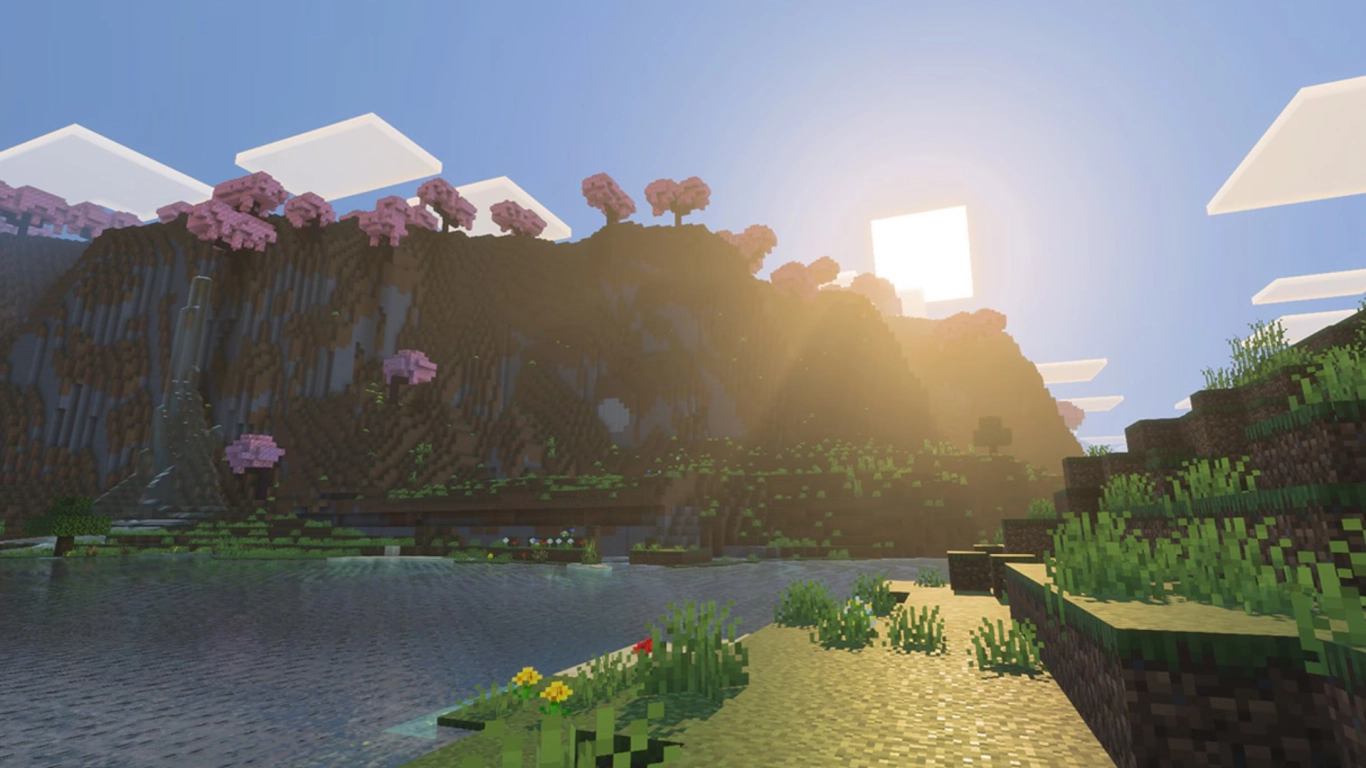
While Bedrock is much more performant and already shines with Vibrant Visuals, Java still lags behind. That’s set to change in 2026: Mojang has announced it will switch Minecraft’s internal graphics backend from OpenGL to Vulkan, just like Bedrock.
Without going too deep, it likely means better performance for most systems. Vulkan is more modern, more efficient, and faster on the majority of PCs, and Java should benefit. It also lays the groundwork to bring Vibrant Visuals to Java. In current 26.2 snapshots, this option is already available. The downside: visual mods and shaders will likely need major updates, and many may have to be rebuilt from scratch.
Conclusion: Play stutter-free with the right Minecraft graphics settings
Even though Minecraft’s pixel look makes it accessible to many PCs and players, performance can still lag. Use the graphics settings that work best for you to balance FPS and visual quality. With Java Edition’s upcoming shift from OpenGL to Vulkan, performance could improve dramatically.
Rent a Minecraft server from us and play together with your friends. Everyone can tune their own graphics settings to get the best performance.