Even before you create your first world in Minecraft, there are many different settings you can adjust. These let you tailor the experience perfectly to you, as there are several exciting options that significantly affect your gameplay — from world type and difficulty to experimental rules. Not all of these settings are straightforward though, especially for brand-new or younger players. So today we’ll go through every option, what it means, and which choices might be best for you.
Create a new Minecraft world: difficulty, cheats, and game mode
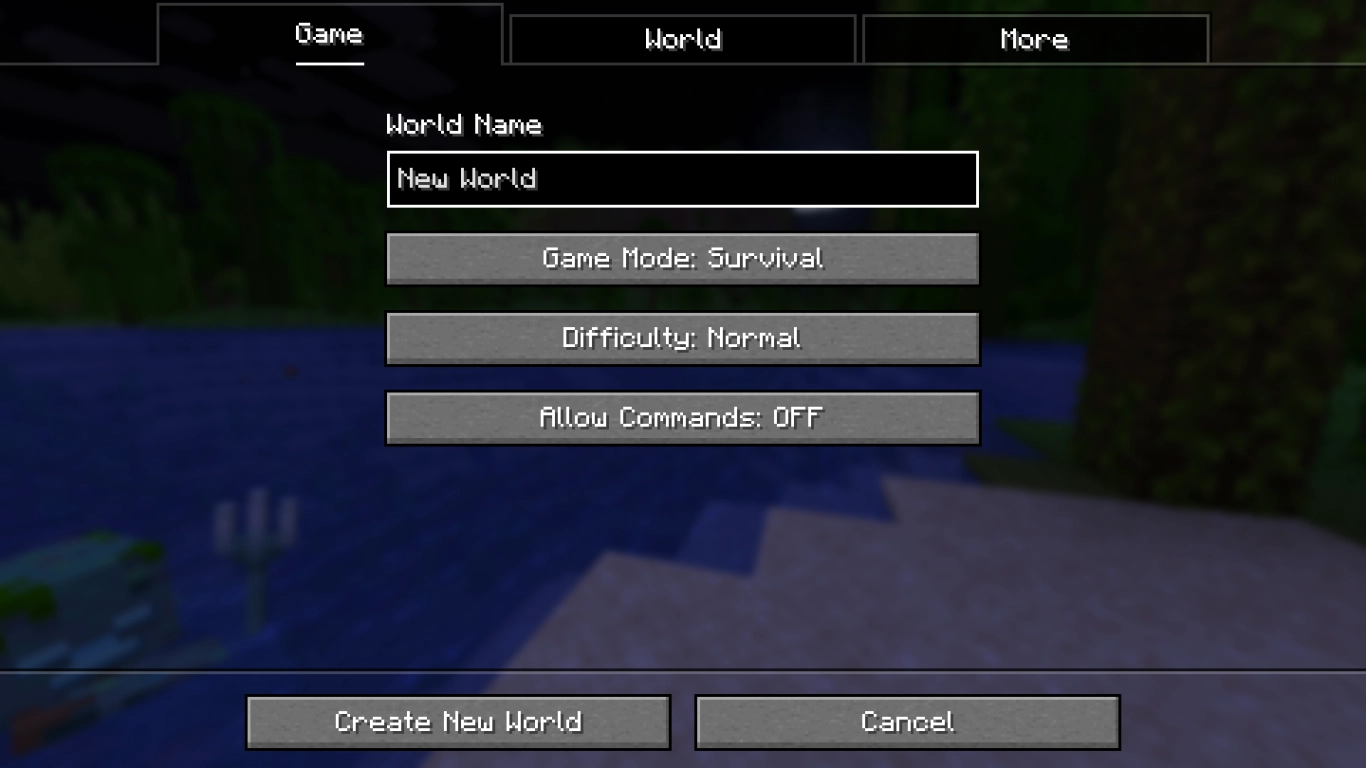
When setting up a new world in Minecraft, you’ll see three tabs to switch between. That’s where you’ll find everything you need. Some options can be changed later, others cannot.
The first menu covers general settings for your game. You can set almost all of these now and change them later in-game or by other means.
World name: Give your new world a name, which also names the corresponding folder. You can rename it later by editing an existing world. Choose a name you’ll recognise at a glance.
Game mode: Choose your mode: the classic Survival, Creative, or Hardcore. In Creative you can build without restrictions (Minecraft Creative mode: tips, commands and the best mods) . In Hardcore, the world is tougher and you lose it on death .
Difficulty: Pick from Peaceful, Easy, Normal, or Hard. This affects mob strength as well as things like regeneration, hunger, and other mechanics. As long as you don’t lock the difficulty later (using the lock icon in the menu), you can change it at any time.
Allow cheats: Cheats are commands that can alter your game. Enable them to access advanced functions, for example to change your game mode later. In Survival it’s best to turn them off, while in Creative you’ll usually turn them on.
Minecraft world settings: world type, seed, and generate structures
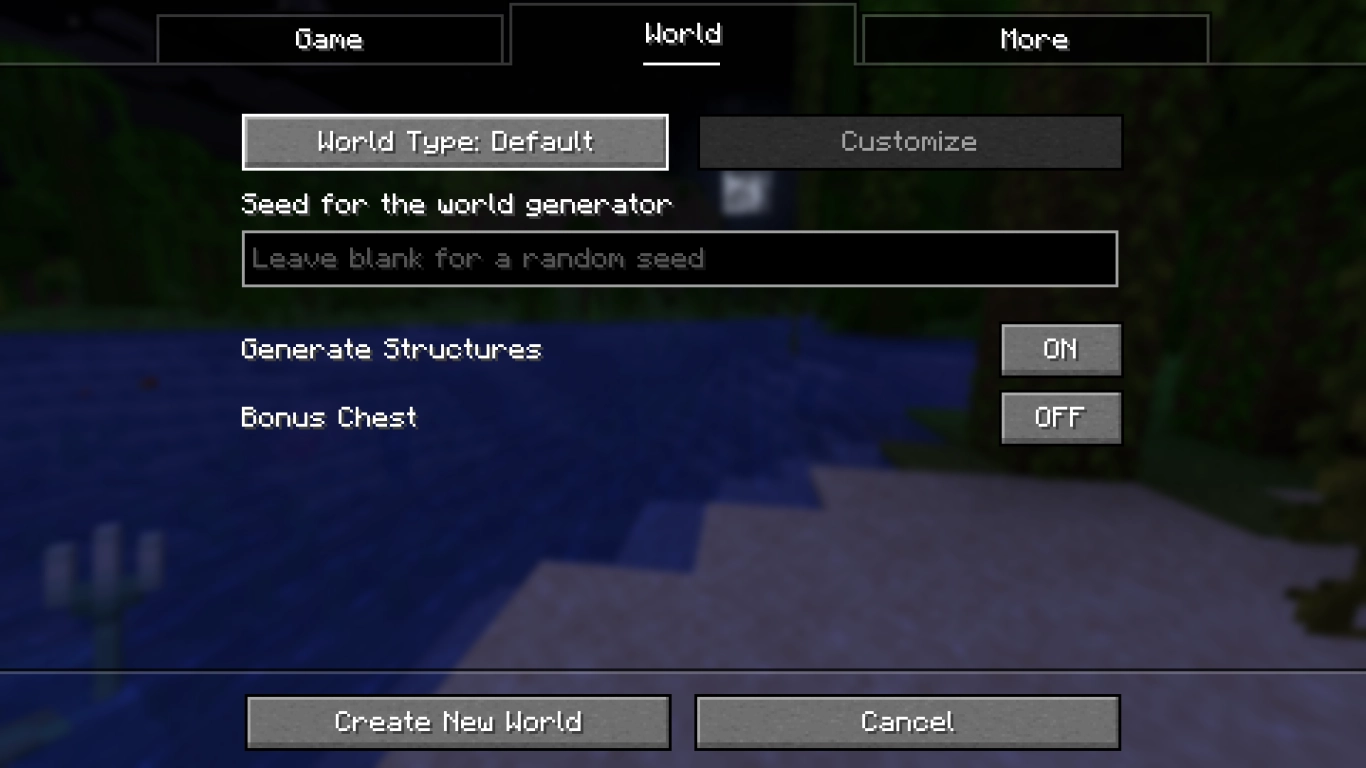
The world settings are likely the ones you’ll be most interested in. Here you can set key parameters that shape how your Minecraft world generates. All of these settings cannot be changed later.
The first button lets you choose your world type. Most players will leave this on Default to generate a normal world. The other options are great for more experienced players.
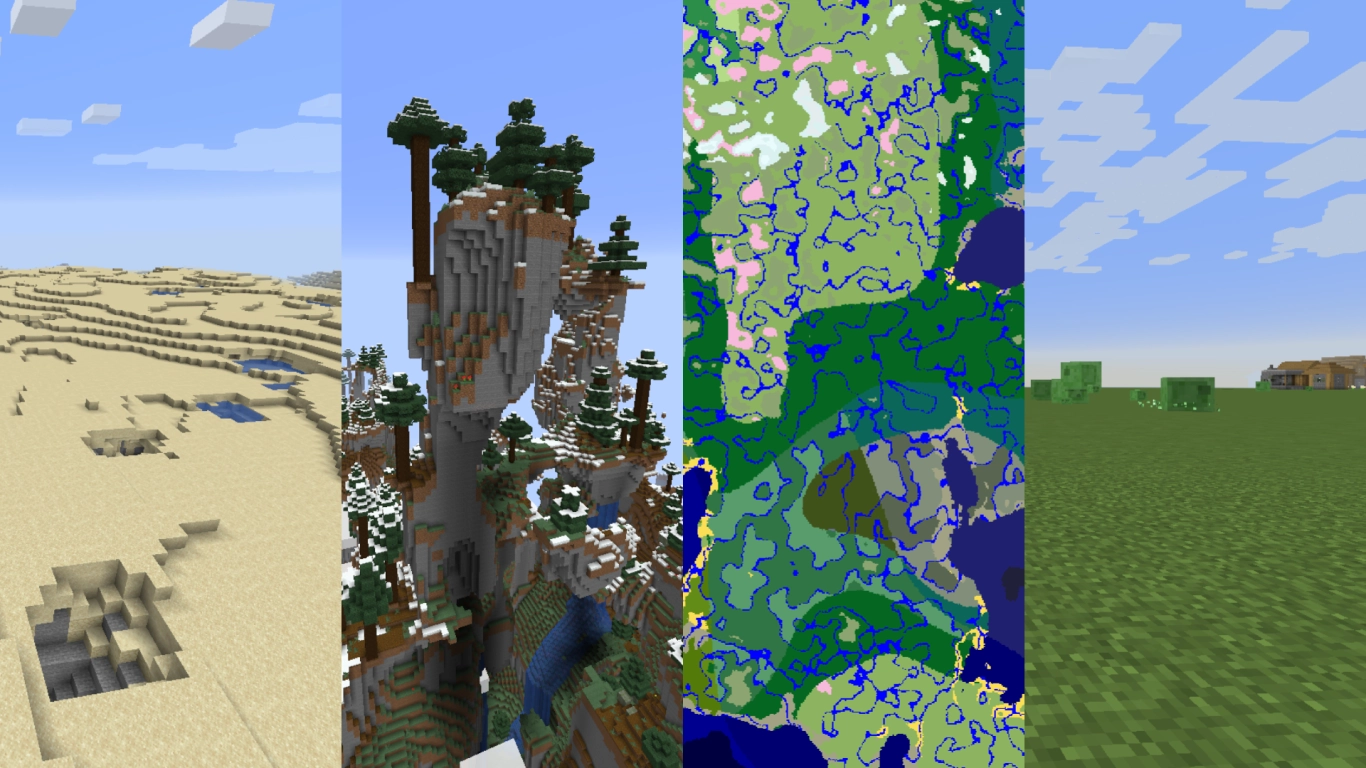
All world types in Minecraft:
Default: The standard world generation for Minecraft. Relevant for most players.
Superflat: A flat world, typically used for testing or creative builds, though it can be a fun challenge too . This offers extra customisation with preset types.
Large Biomes: Increases biome size by roughly four times, making regions feel larger and more expansive. It’s a refreshing change from the default, more immersive, and makes long journeys far more exciting. Landscapes can also feel a touch more realistic.
Amplified: A very different challenge where the terrain is much harder to traverse. Expect towering, steep mountains that look amazing but require more effort to navigate. It also demands a powerful PC, so it’s only available on Java. Still, Amplified can be a fantastic change of pace, and those dramatic peaks are absolutely worth it. We recommend every player try this world type at least once!
Single Biome: You can also generate a world consisting of just one biome. It uses the terrain of your chosen seed, but only one landscape type is generated. This can be quite funny — or a serious challenge. You can pick any biome, creating over 60 different variants. Anything from regular plains to cave biomes is possible.
Below these options you can enter your seed. Leave it blank for a random seed. If you want a specific world generation, enter the value here. We’ve already compiled a list of great seeds if you’re looking for some (Top Minecraft seeds to start with: survival islands, caves & biomes) .
Finally, there are two more options:
Generate structures: Choose whether structures like villages, pyramids, and other buildings should generate.
Bonus chest: Gives you some early tools, wood, and food. Helpful for new players.
Minecraft advanced settings: Game Rules, Experiments, and Data Packs
The settings under More are aimed at advanced players who want to fine‑tune their Minecraft experience. We’ll still take a closer look, because there are options here that may interest every player — you just need to understand them first.
Game Rules: Specific parameters for your world. There are too many to list, but some are particularly useful. For example, you can keep your inventory on death, disable raids, or turn off certain damage types (e.g., drowning). You can disable PvP, switch off specific mobs (e.g., Phantoms or the Warden), and adjust many other behaviours.
Experiments: Toggle experimental features that Mojang is currently testing. These are independent of regular snapshots.
Data Packs: Install data packs that work much like mods. We’ve got a full guide if you want to learn more (Minecraft Data Packs: Installation, tips & the best packs) .
You can change all of these later in-game. Game Rules can only be edited with cheats enabled, but you can add Data Packs at any time.
Conclusion: best settings for your new Minecraft world
Minecraft’s world creation can feel overwhelming, especially if you’re unfamiliar with the game’s terminology. Hopefully, we’ve helped you build the perfect world. It’s well worth trying different options on subsequent worlds or tweaking things later on. World types that diverge from the default generator, as well as unique seeds from the community, are especially exciting.
If you want to create your own world on a server, rent one of our Minecraft servers and set your own options there. The same rules apply to a multiplayer server, which you can customise as an admin.
More interesting articles
Minecraft world generation: The best mods and data packs