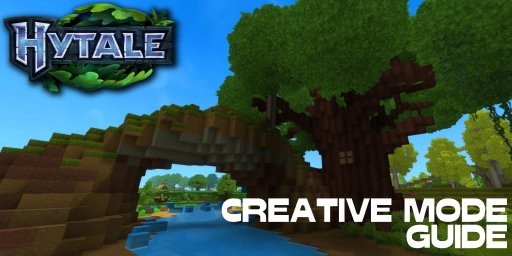
Hytale is primarily a survival game, but builders will have a ton of fun with it too. That’s thanks to its robust, feature-rich Creative Mode you can already try out. It makes Minecraft’s native Creative feel dated: it does far more, is easier to use, and is packed with prompts, hints, and tips that make building and creating simpler. Getting started can still feel a bit overwhelming, so we’ll walk you through the mode and show you which tools are available.
Hytale Creative Mode explained: How to get started
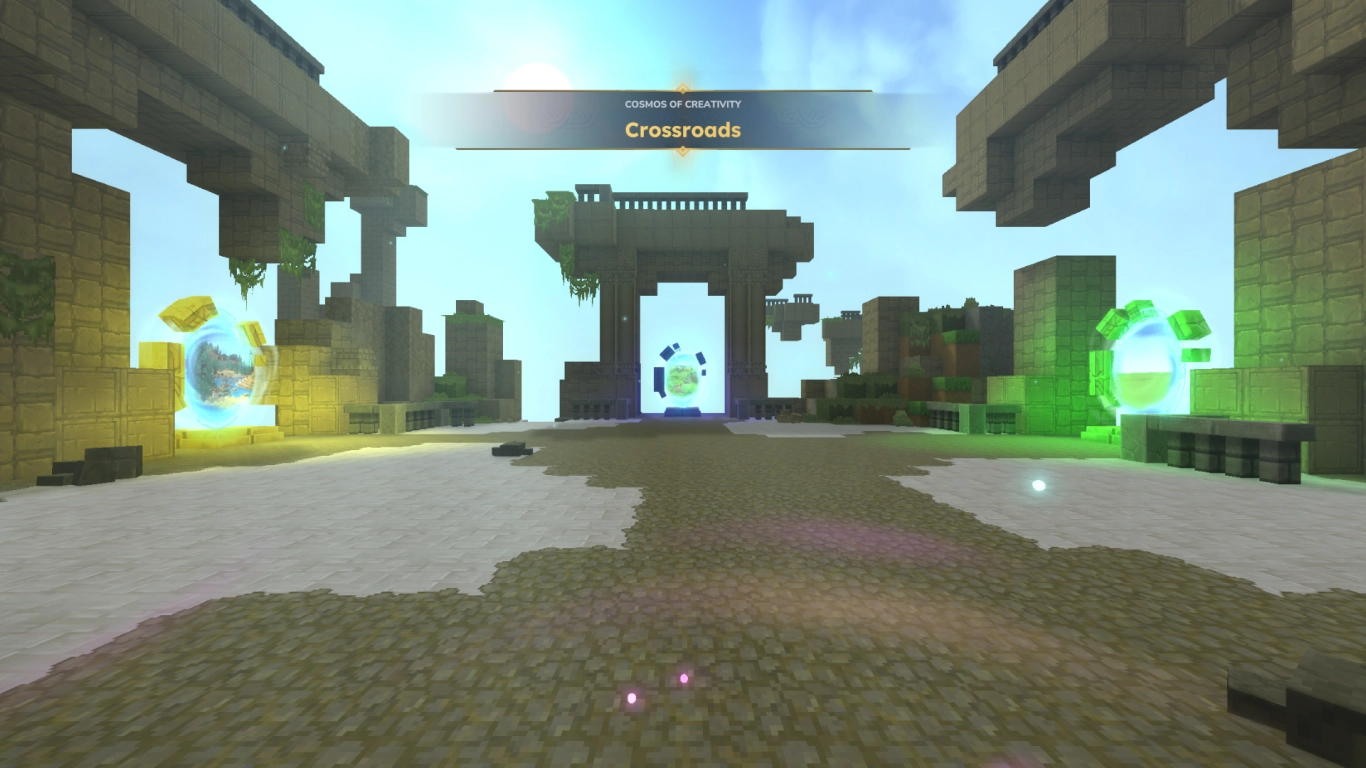
Just like in Minecraft, Creative Mode is primarily for building and creating your own world without restrictions. You have access to all blocks, are invulnerable, and can even fly. In that sense, it’ll feel familiar.
You can create a Creative world by selecting it in the main menu. As with regular worlds, you can also adjust more settings via the gear icon and add mods. But everything we’re showing today works completely without mods!
When you open the world, you’ll start in the “Crossroads.” From there you can choose between three worlds:
- a superflat world
- a standard map with the currently known zones
- a world featuring a tundra biome from World Generation V2
You can enter any portal, and you can return to the hub later by typing /hub in chat (open with Enter). For example, you can assemble builds in the flat world first and then transfer them to a normal world.
Hytale Creative Mode tools: An overview of everything
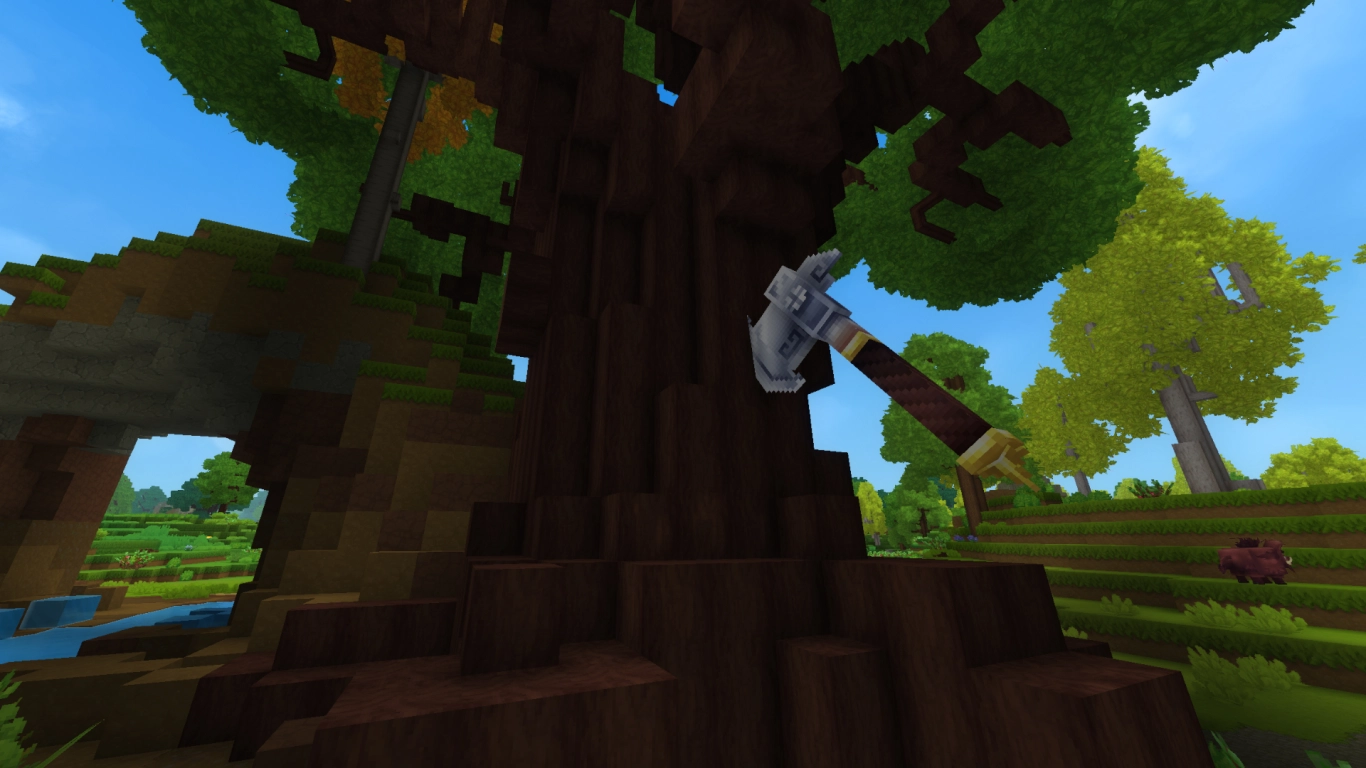
Once you’ve picked a world, you essentially have everything at your fingertips. A quick look at your inventory shows there’s a lot to explore. Hytale gives creative players a wealth of handy tools you’ll want to get familiar with. We’ll go through them step by step, though we recommend experimenting and discovering things on your own.
Hytale blocks, decorations, and gear in Creative
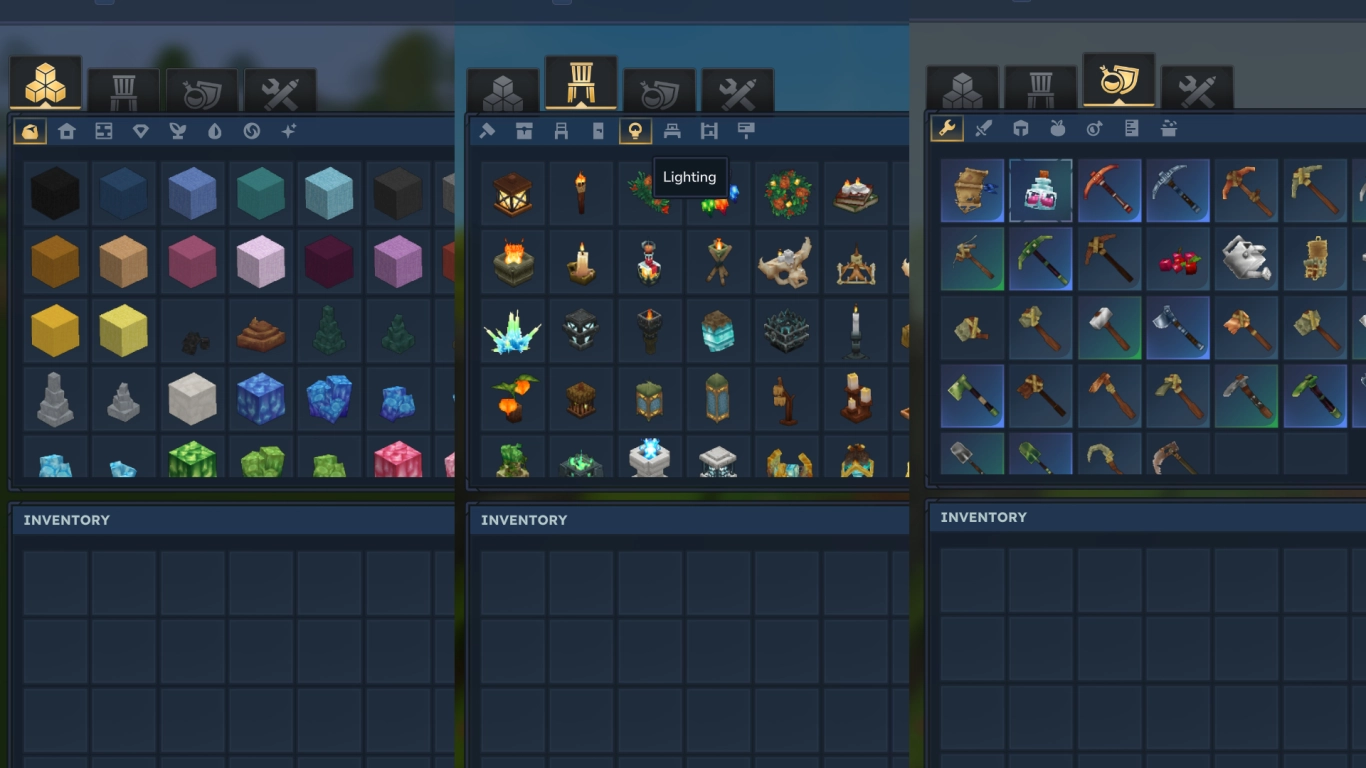
First, let’s look at the regular inventory—there’s already plenty to see here. You can choose between four tabs organized into categories: blocks, decorations, gear, and tools.
Let’s dive into the first three. You’ll recognize this menu from Minecraft: it’s where you can find every block currently in the game, including many items you can’t yet obtain in regular survival. Each of the three menus has its own subcategories in the bar below, where you can find virtually any item. You can also use the search on the right to look for specific things.
Drag the item you want into your hotbar and you can build to your heart’s content. It’s intuitive and probably the simplest part of Creative Mode in Hytale.
Hytale terrain tools and brushes: Precisely shape your world
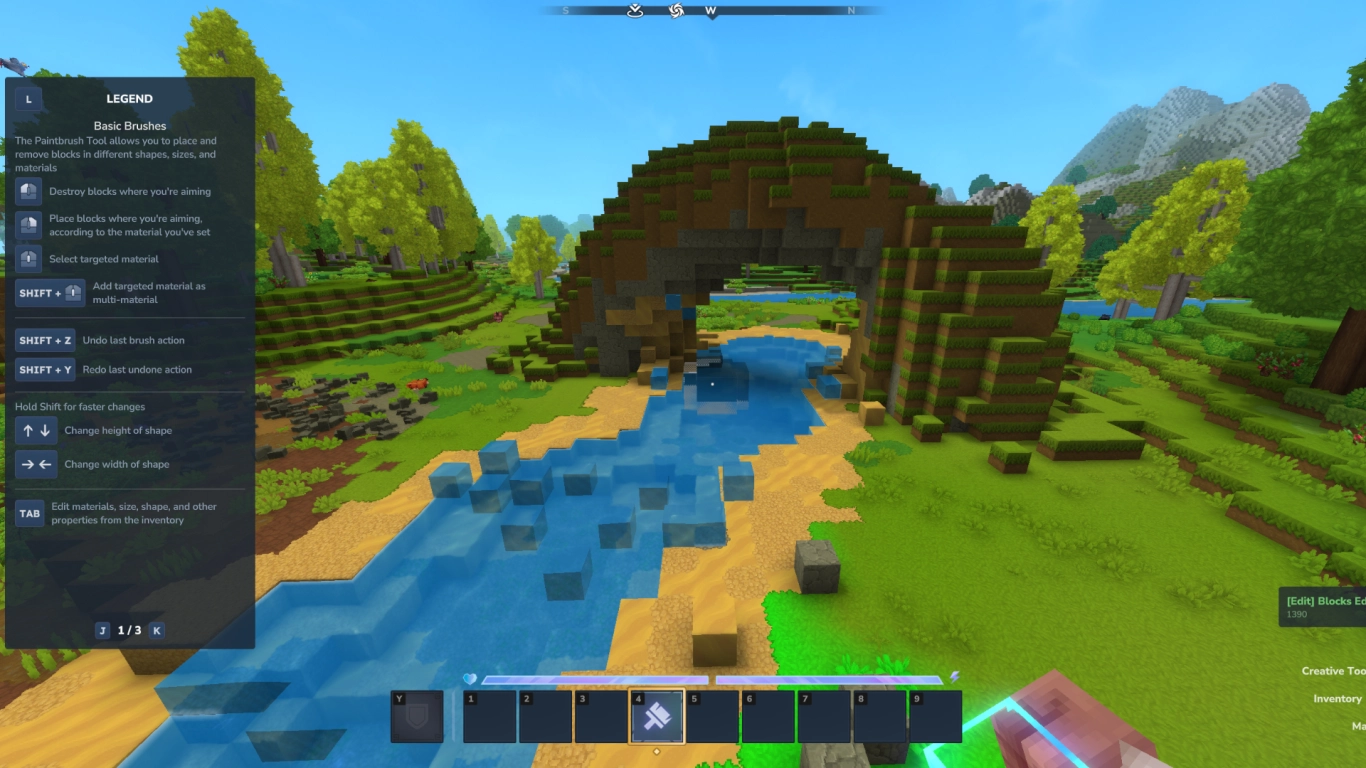
Things get more interesting and complex when you open the fourth tab. Here you’ll find various tools to manipulate the world around you. We’ll focus on the first three subcategories, as some of the later sections aren’t functional yet.
You can adjust every tool using the panel on the right. This includes size and width, selected blocks, and many other settings. That lets you build highly sophisticated tools and custom creations. You’ll also see a tip panel on the left for each tool that lists all keybinds so you can get familiar with them.
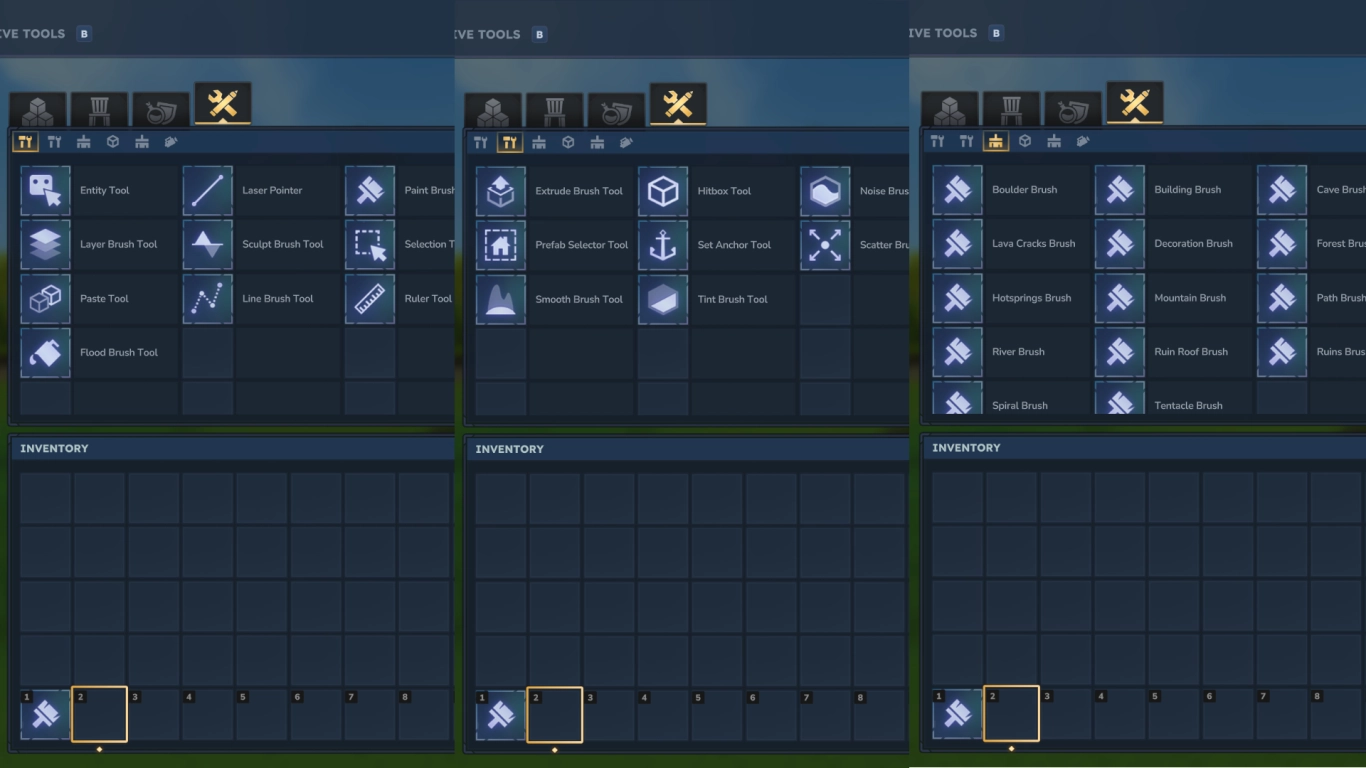
The first category includes some of your most important tools:
- Entity Tool: Arguably the most powerful tool in the game! Spawn almost any animal, item, block, or prefab from Hytale, rotate and modify them at will, and place them freely in the world.
- Paint Brush Tool: Paint your world with any block you choose.
- Paste Tool: Choose from Hytale’s extensive catalog of entities and place them in your world.
- Selection Tool: Select parts of your world, then move, copy, or delete them.
The second category focuses on broader world manipulation with detailed terrain adjustments using Extrude, Noise, or Smooth. It’s worth trying everything to see how each option affects the world.
The third category continues terrain work, letting you shape landscapes using a set of prefabricated assets. As mentioned, you can customize these—swap blocks or build custom brushes. With them, you can create mountains, carve rivers, or lay paths in no time.
Hytale commands, spawning, and Quick Settings
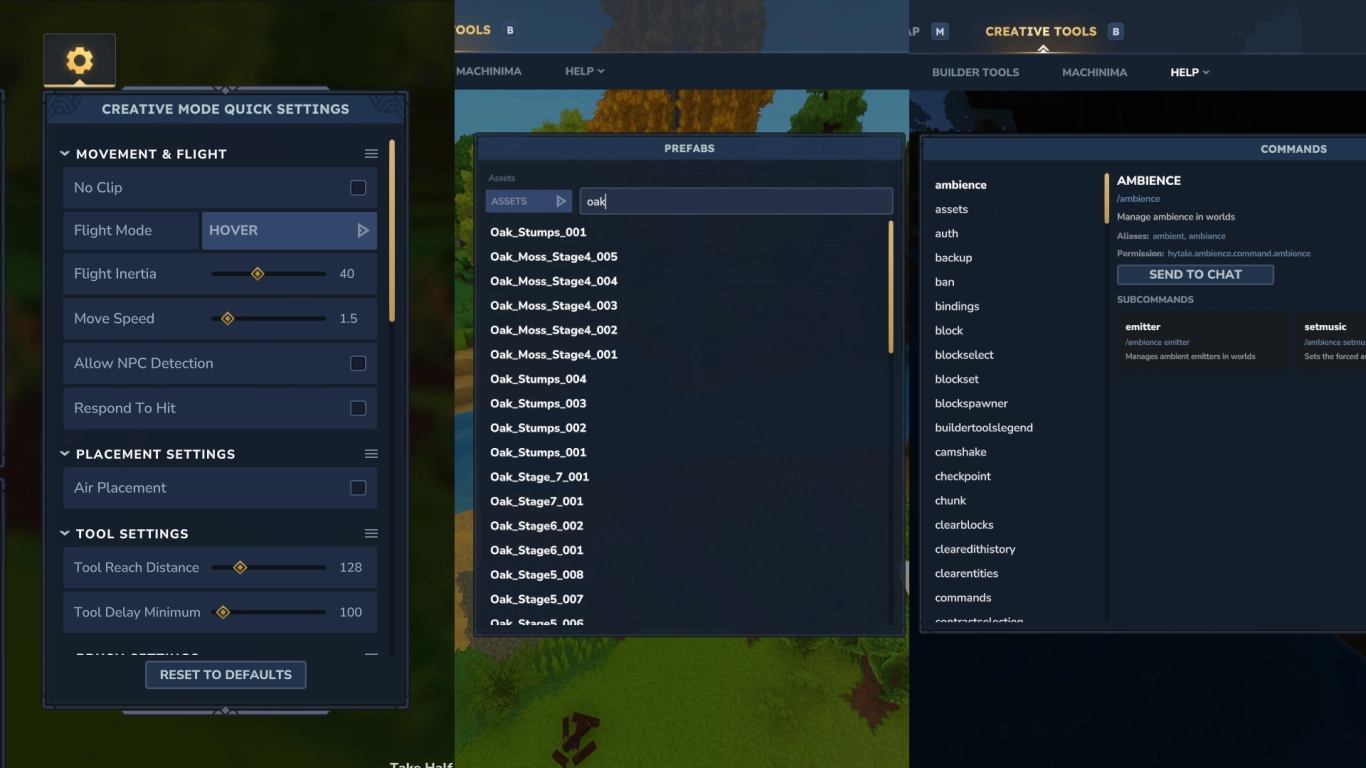
Finally, let’s cover a few more Creative details. In the inventory, you can also configure Quick Settings on the right when you’re not holding a tool. There you can set your flight speed, enable no-clip, or adjust your reach. You can also teleport by selecting any location on the map.
Press B to open another menu for more advanced creative tools. Using the top bar, you can edit assets (separate app) or choose and spawn all kinds of prefabs, entities, particles, or sounds. Hytale gives you tremendous freedom because everything in the game is built from these components.
Under Help, you’ll also find all commands you can enter in chat with Enter. These can add the final polish if you’re looking for a specific function.
Conclusion: Hytale’s Creative Mode is a dream for builders
Even without mods, Hytale’s Creative Mode offers endless ways to build your dream world. You can pick any block in the game and manipulate it to your liking—without having to snap to a grid—letting you work directly at a fine level of detail. Shaping landscapes is easy thanks to the terrain tools, and you have access to all of Hytale’s prefabs to place wherever you want.
You can, of course, use Creative in multiplayer—spin up your own Hytale server with us and get started! There’s an incredible amount to discover, and you can build a beautiful world together with friends.